
CompTIA A+ Core 1 | Domain 4: Virtualization & Cloud Computing (11%) | Reading (11)
4.1 Virtualization Fundamentals
What is Virtualization?
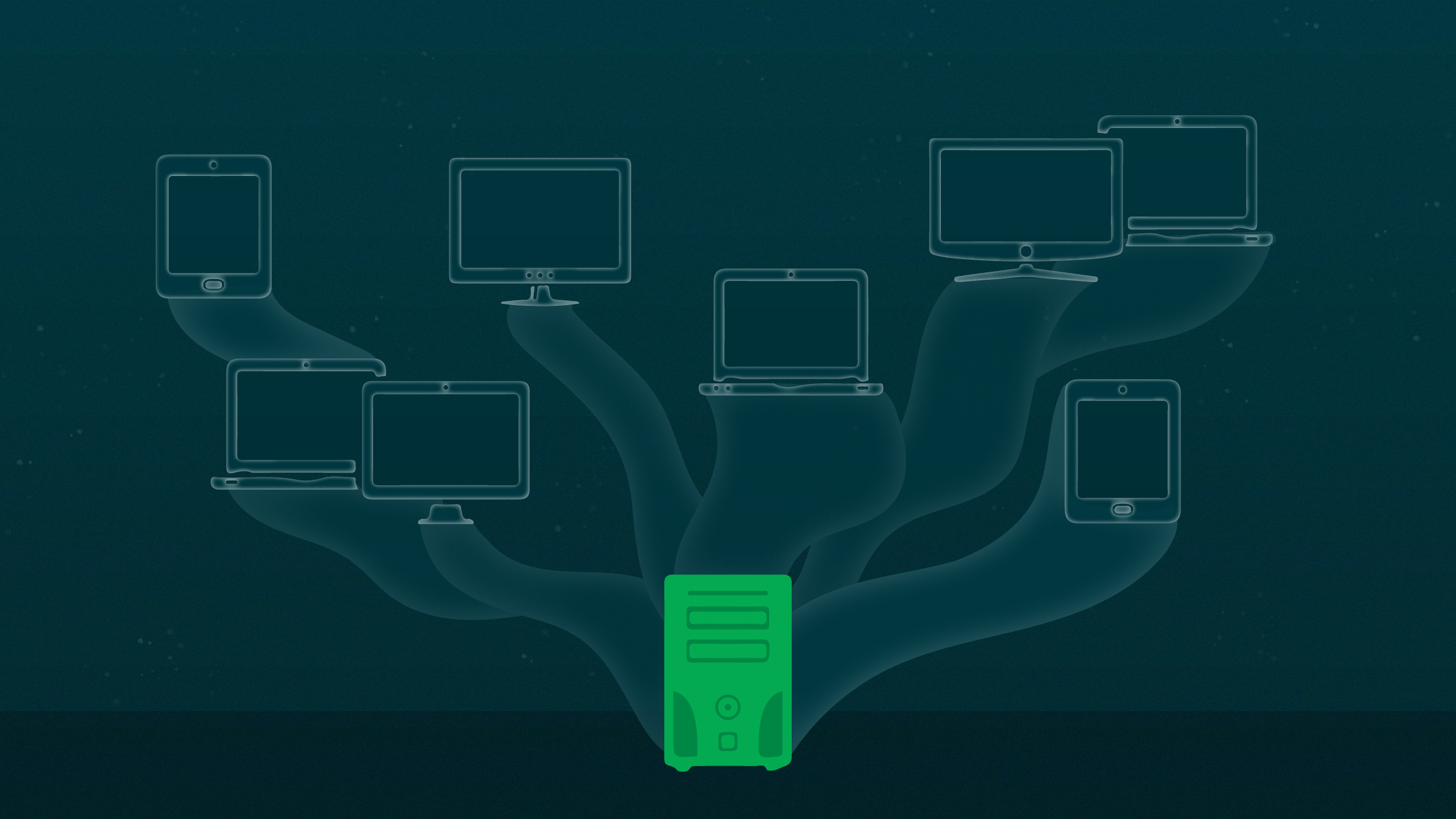
Virtualization allows you to run multiple operating systems (virtual machines) on a single physical computer.
Instead of one computer = one OS
You can have one computer = many virtual systems
Key Benefits:
- Resource efficiency
- Cost savings
- Isolation (safe testing)
- Easy backup and recovery
Virtual Machine (VM)
A software-based computer that behaves like a physical machine.
Components of a VM:
- Virtual CPU
- Virtual RAM
- Virtual disk
- Virtual network adapter
4.2 Hypervisors (VERY IMPORTANT)
What is a Hypervisor?
Software that creates and manages virtual machines
Types of Hypervisors
Type 1 (Bare Metal)
- Runs directly on hardware
- No host OS
Examples:
- VMware ESXi
- Microsoft Hyper-V
Key Benefits:
- Faster
- Used in enterprises
Type 2 (Hosted)
- Runs on top of an OS
Examples:
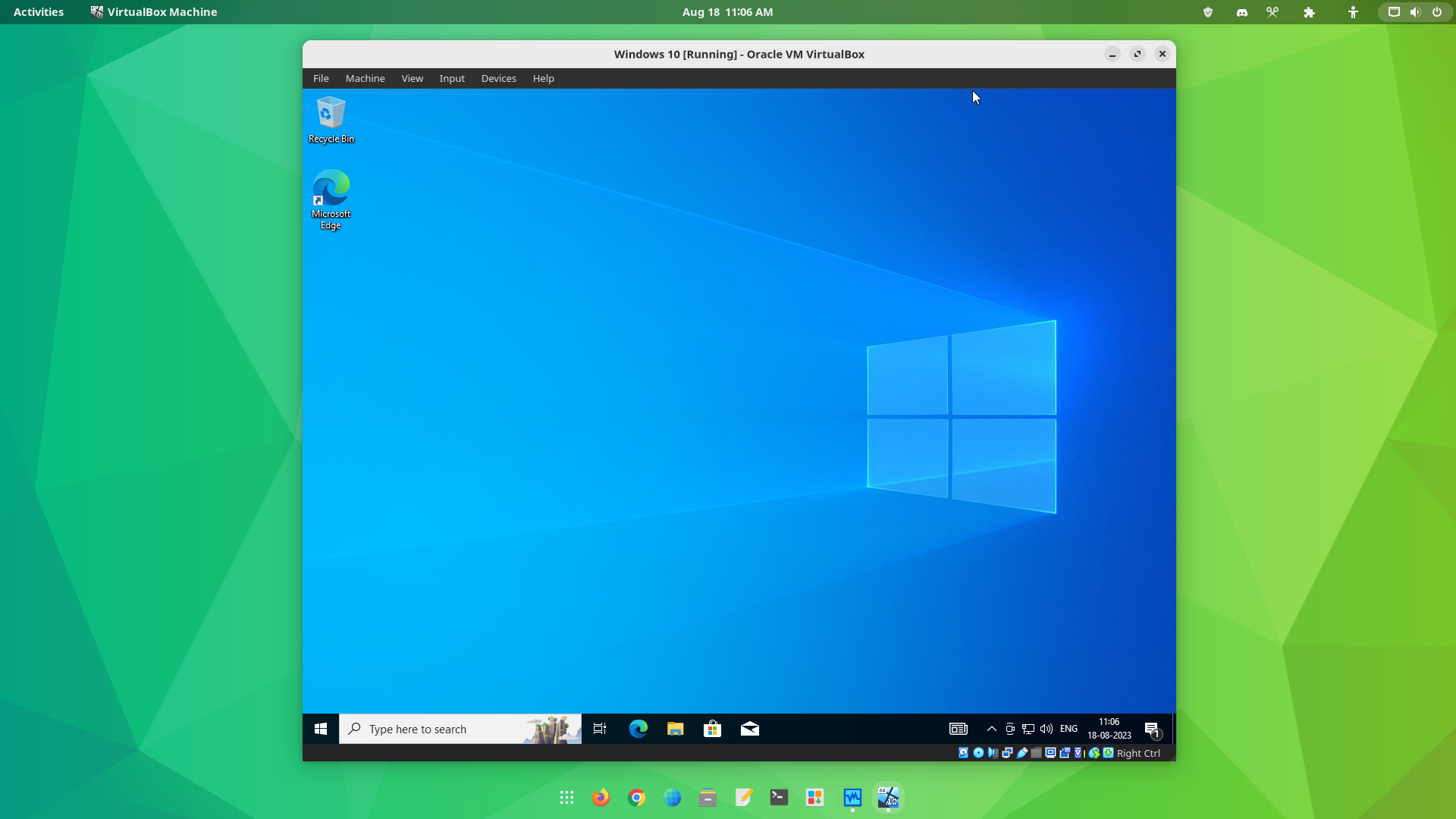
- Oracle VM VirtualBox
- VMware Workstation
Key Benefits:
- Easier to use
- Ideal for labs (A+ students)
4.3 Virtualization Requirements
Hardware Requirements
CPU Virtualization Support
- Intel VT-x
- AMD-V
Must be enabled in BIOS/UEFI
Resource Requirements
- Enough RAM (minimum 8GB recommended)
- Multi-core CPU
- SSD storage (for performance)
Host vs Guest OS
|
Role |
Description |
|
Host OS |
Main OS installed |
|
Guest OS |
4.4 Virtual Machine Configuration
VM Settings
- Allocate RAM (e.g., 4GB)
- Assign CPU cores
- Create virtual disk (dynamic or fixed)
- Attach ISO file for OS installation
Disk Types
|
Type |
Description |
|
Dynamic |
Expands as needed |
|
Fixed |
Uses full size immediately |
Snapshots (CRITICAL)
- Save VM state at a point in time
- Allows rollback after errors
4.5 Virtual Networking
Network Modes (MEMORIZE)
NAT (Network Address Translation)
- Shares host internet
- VM hidden from network
✔ Easy setup
Bridged Mode
- VM acts like real device
- Gets its own IP
✔ Best for realistic labs
Internal Network
- Isolated VMs only
- No internet
✔ Safe testing environment
4.6 Cloud Computing Fundamentals
What is Cloud Computing?
Delivery of computing services over the internet.
Examples:
- Storage
- Servers
- Applications
Key Benefits:
- Scalability
- Accessibility
- Cost efficiency
- High availability
4.7 Cloud Service Models (HIGH PRIORITY)
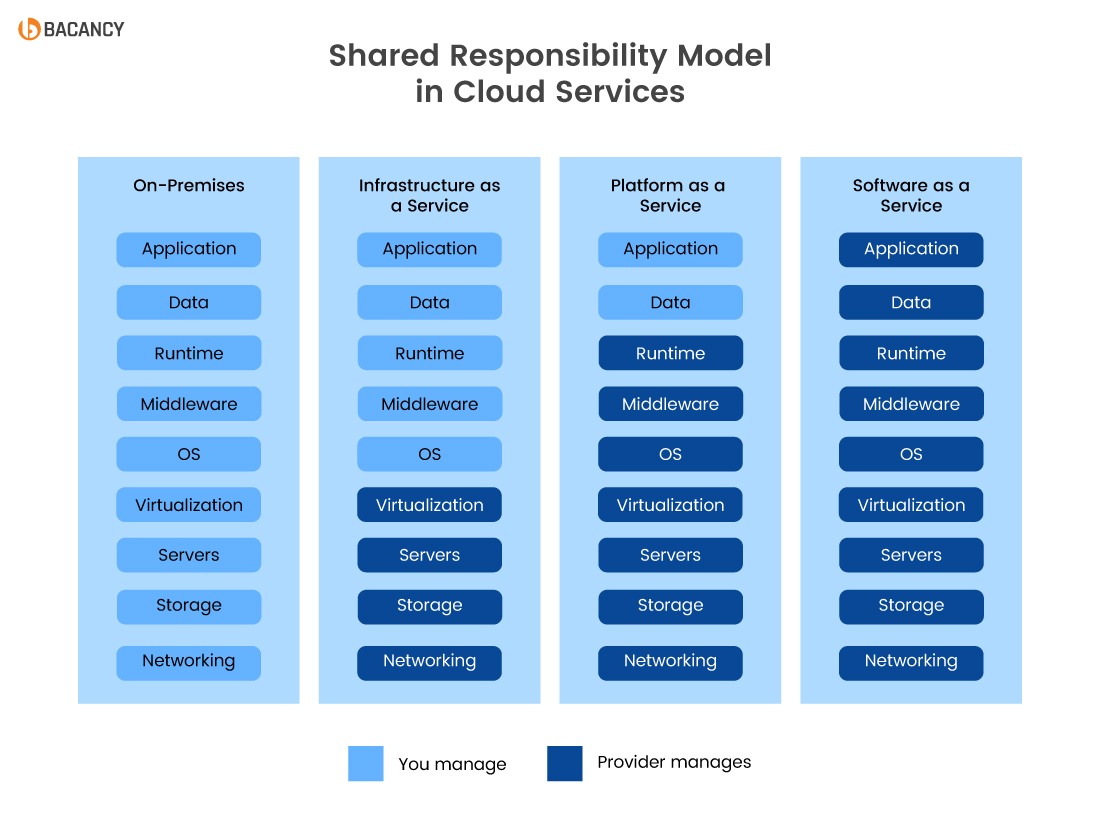
SaaS (Software as a Service)
- Software delivered via internet
- No installation needed
Examples:
- Microsoft 365
- Google Docs
PaaS (Platform as a Service)
- Platform for developers
- No hardware management
IaaS (Infrastructure as a Service)
- Virtual servers and networking
- Full control over OS
Comparison
|
Model |
Control Level |
|
SaaS |
Lowest |
|
PaaS |
Medium |
|
IaaS |
Highest |
4.8 Cloud Deployment Models
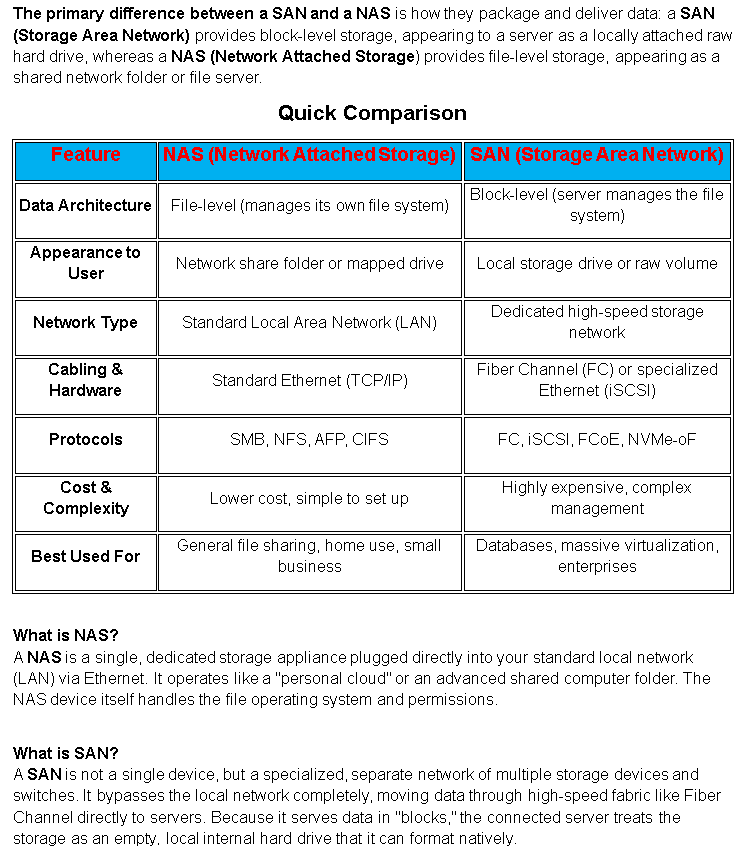
SAN and NAS Storage
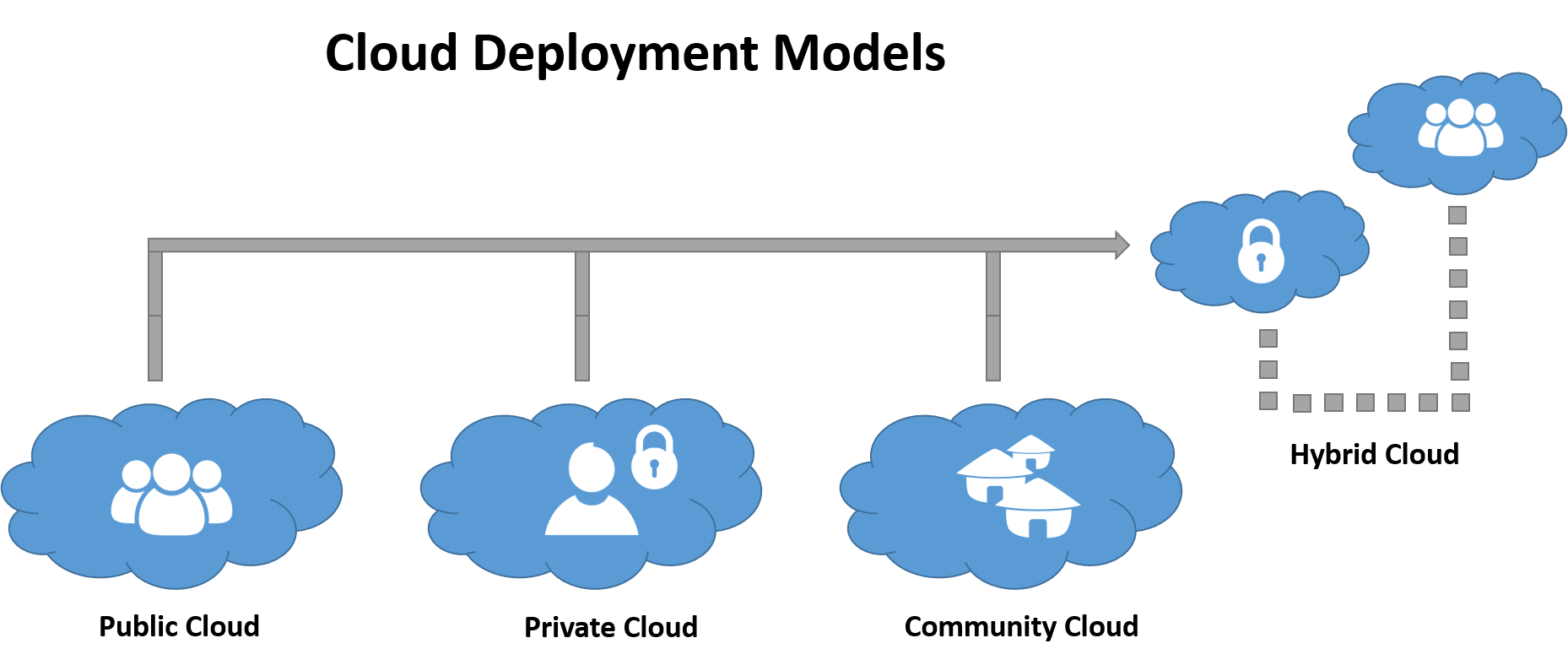
Public Cloud
- Shared infrastructure
- Accessible over the internet
Private Cloud
- Dedicated to one organization
Hybrid Cloud
- Mix of public + private
4.9 Cloud Concepts
Scalability
- Increase/decrease resources as needed
Elasticity
- Automatic scaling based on demand
High Availability
- Systems stay online (minimal downtime)
Resource Pooling
- Shared resources across users
4.10 Virtual Desktop Infrastructure (VDI)
What is VDI?
- Desktop environment hosted on a server
- Accessed remotely
Benefits:
- Centralized management
- Secure data storage
- Remote access
4.11 Virtualization & Cloud Troubleshooting
Common Issues
VM Won’t Start
Causes:
- Virtualization disabled
- Not enough RAM
Slow VM Performance
Causes:
- Low resources
- Too many VMs running
No Network in VM
Causes:
- Wrong network mode
- Adapter disabled
Cloud Service Down
Causes:
- Provider outage
4.12 Security in Virtualization & Cloud
Virtualization Risks:
- VM escape attacks
- Improper isolation
Cloud Security:
- Data encryption
- Access control
- MFA (Multi-Factor Authentication)
Videos: Virtualization and Cloud Computing
4.1 – Virtualization
Virtualization provides a way to run multiple operating systems simultaneously on the same physical system. In this video, you’ll learn about virtualization, sandboxing, developing software, legacy software use, and cross-platform virtualization.
There are many different methods to virtualize an operating system. In this video, you’ll learn about hypervisors, type 1 and type 2 virtualization, CPU support, network requirements, virtual desktop infrastructure (VDI), and containerization.
4.2 – Cloud Computing
There are many different models for deploying a cloud infrastructure. In this video, you’ll learn about public vs. private cloud deployments, infrastructure as a service (IaaS), software as a service (SaaS), and platform as a service (PaaS).
A cloud infrastructure can use many different technologies during normal operation. In this video, you’ll learn about internal vs. external clouds, metered cloud usage, elasticity, availability, file synchronization, and multitenancy.
CompTIA A+ Core 1 | Domain 4: Virtualization & Cloud Computing | Knowledge Check
- What does a hypervisor do?
A. Stores data
B. Manages VMs
C. Connects networks
D. Provides internet
2. Which is a Type 2 hypervisor?
A. ESXi
B. Hyper-V
C. VirtualBox
D. BIOS
3. Which cloud model provides software online?
A. IaaS
B. PaaS
C. SaaS
D. LAN
4. Which network mode gives VM its own IP?
A. NAT
B. Bridged
C. Internal
D. Loopback
5. What allows rollback of a VM?
A. Backup
B. Snapshot
C. Clone
D. Restore point
Answers: 1-B, 2-C, 3-C, 4-B, 5-B