CompTIA A+ Core 1 | Domain 3: Hardware (25%) | Reading (1, 2, 3 & 5)
3.1 PC Hardware Overview
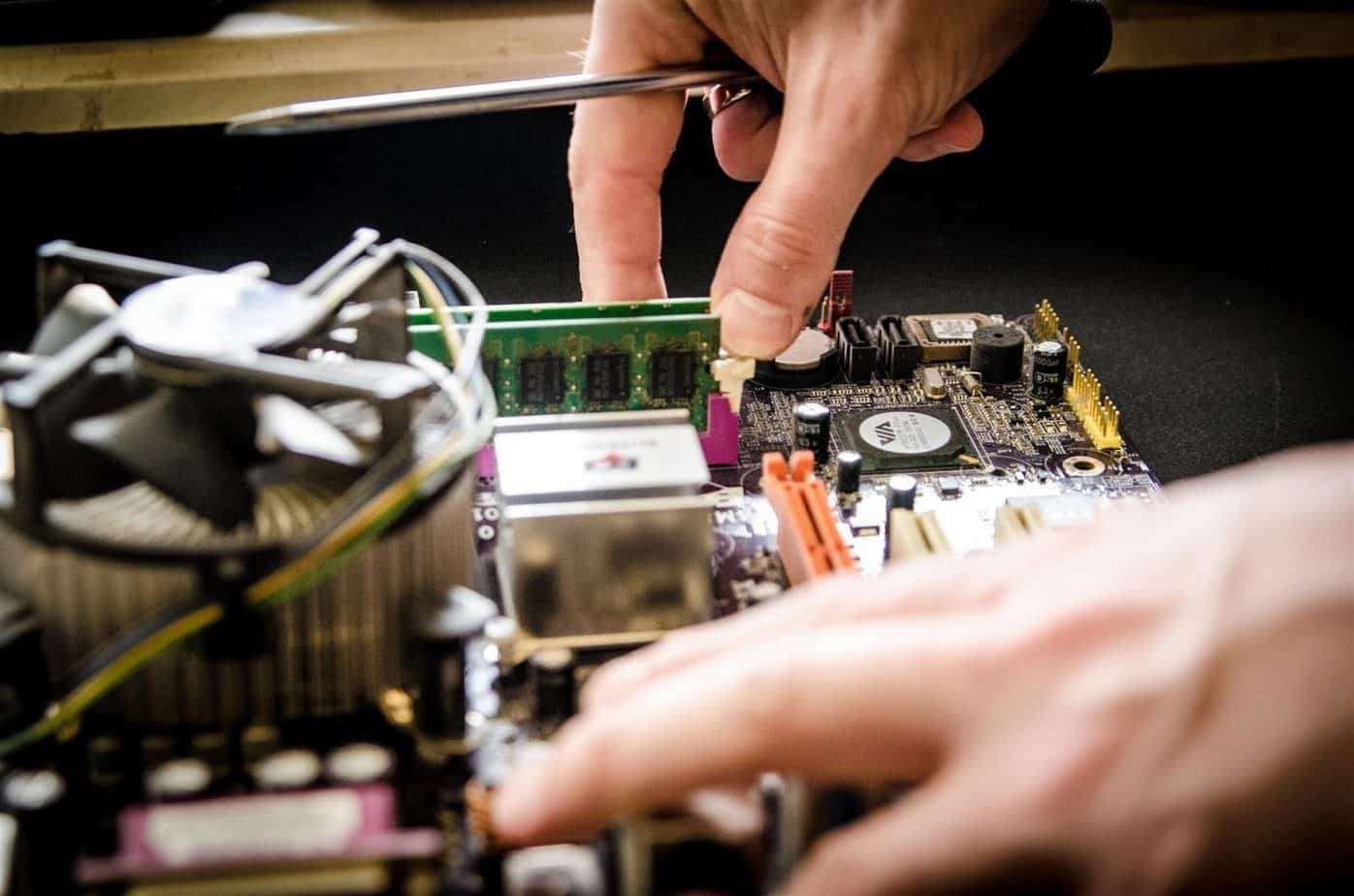
A computer system is made up of internal components (inside the case) and external peripherals (outside devices). Understanding how these interact is essential for troubleshooting and upgrades.
3.2 Motherboards (System Board)
What is a Motherboard?
The main circuit board that connects all components.
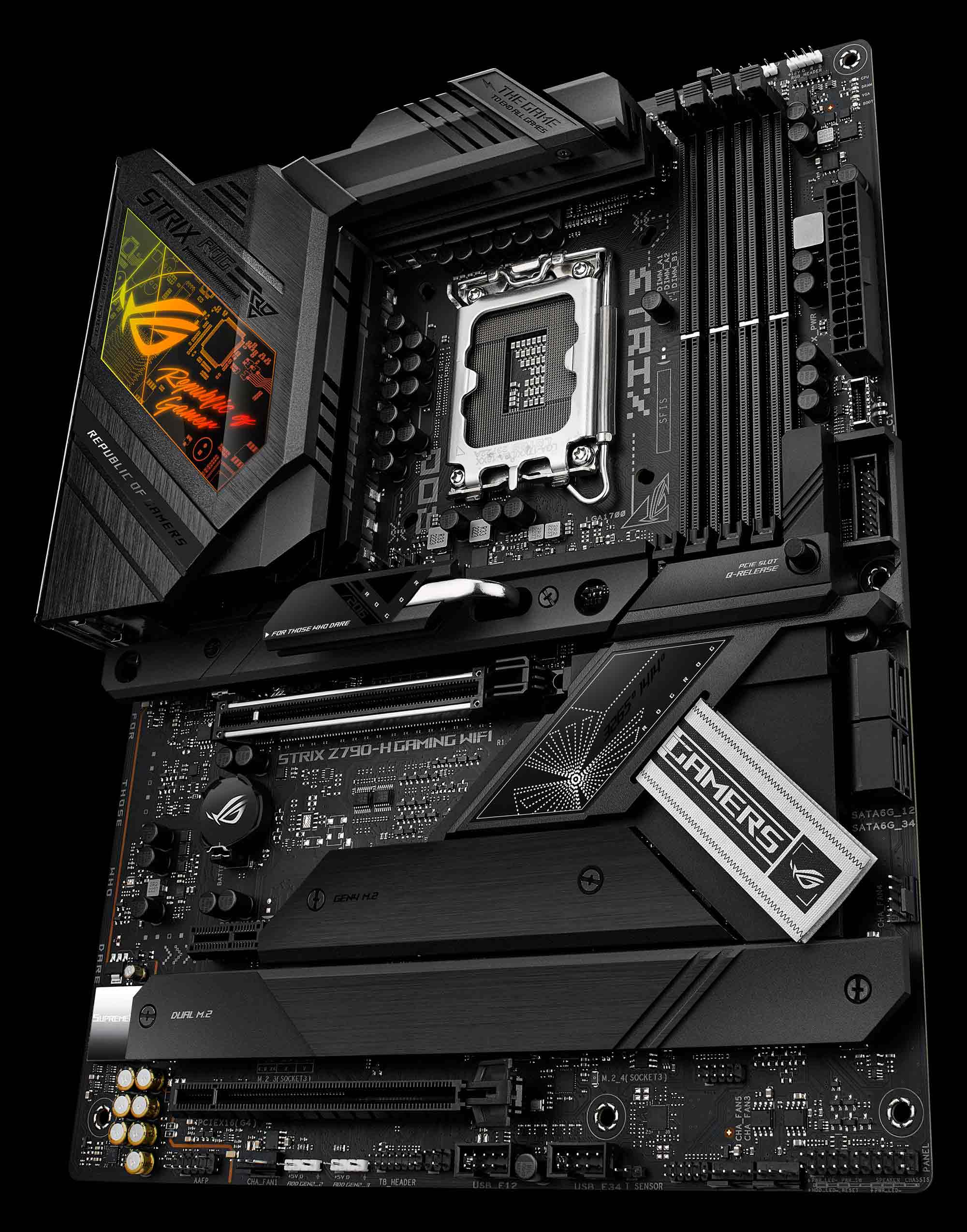
Key Components on a Motherboard
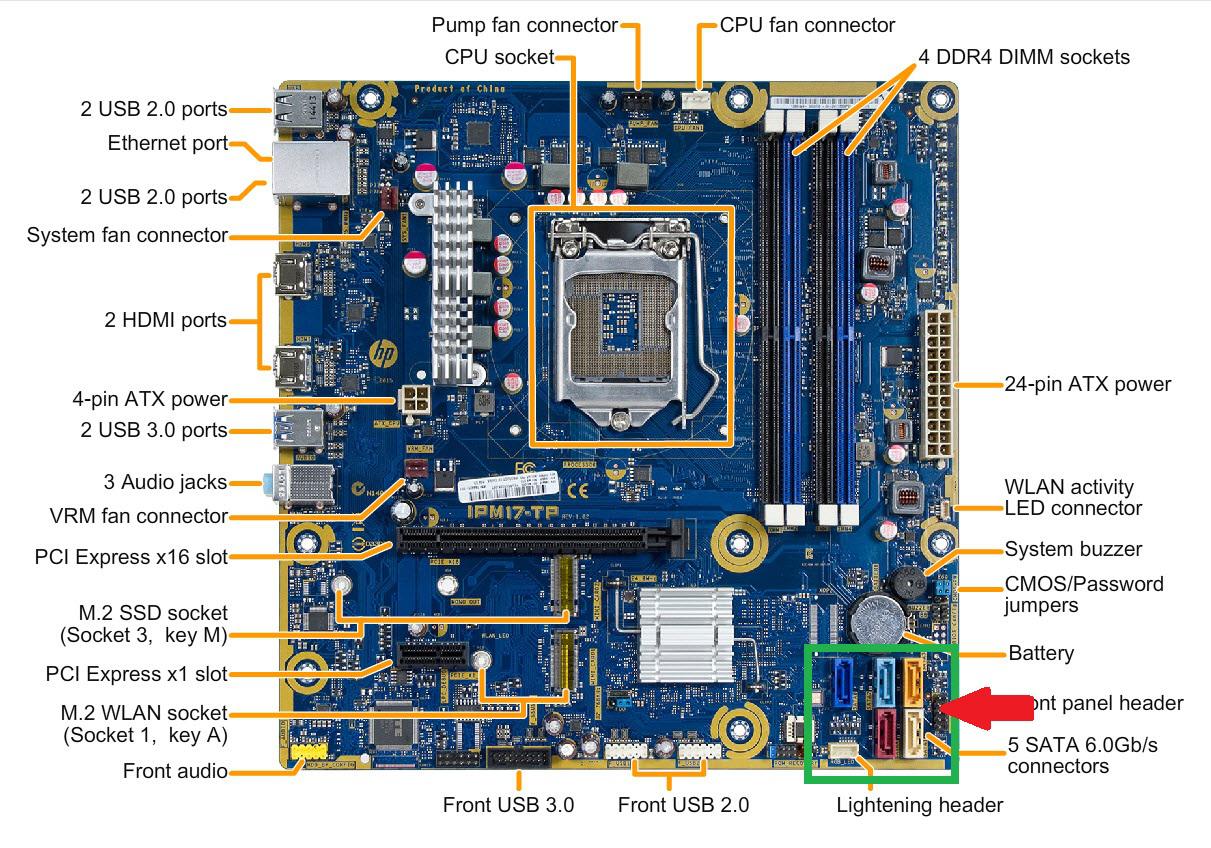
CPU Socket
- Holds the processor
- Must match CPU type (Intel vs AMD)
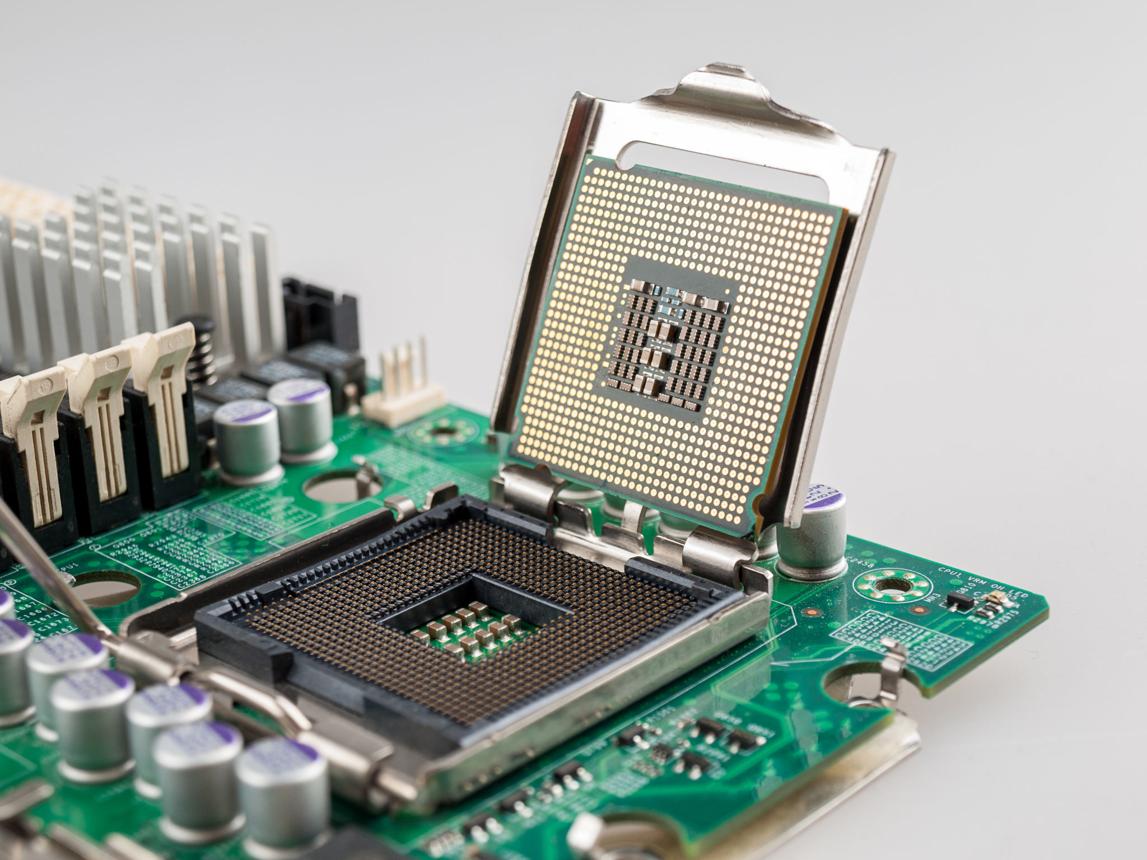
Chipset
- Controls communication between CPU, RAM, and devices
- Determines features and compatibility
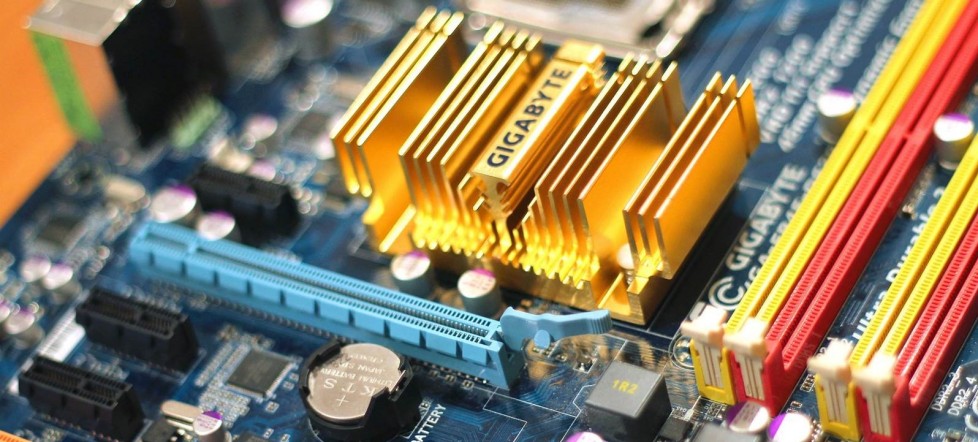
RAM Slots (DIMM Slots)
- Typically 2–4 slots on desktops
- Dual-channel configurations improve performance
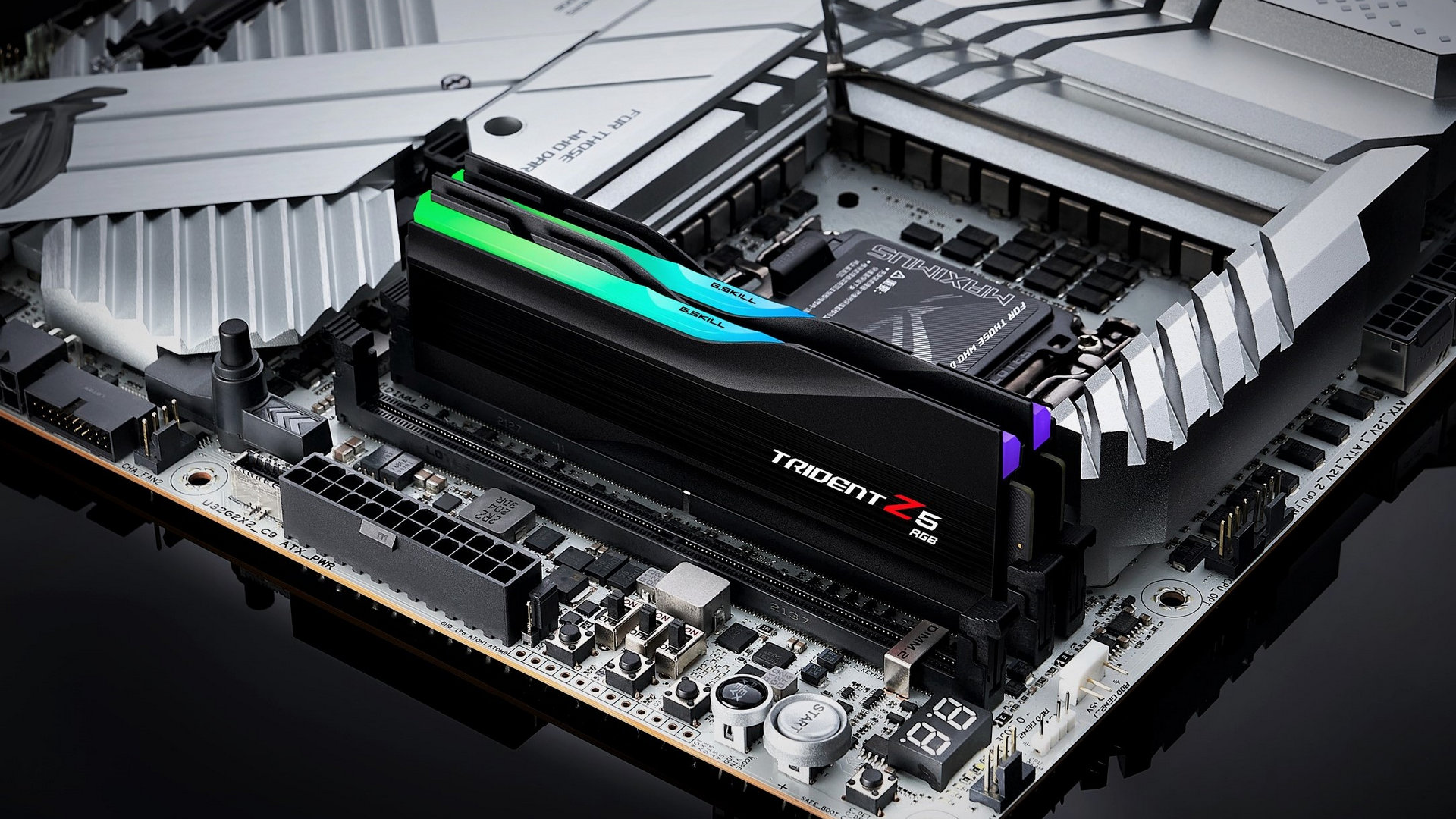
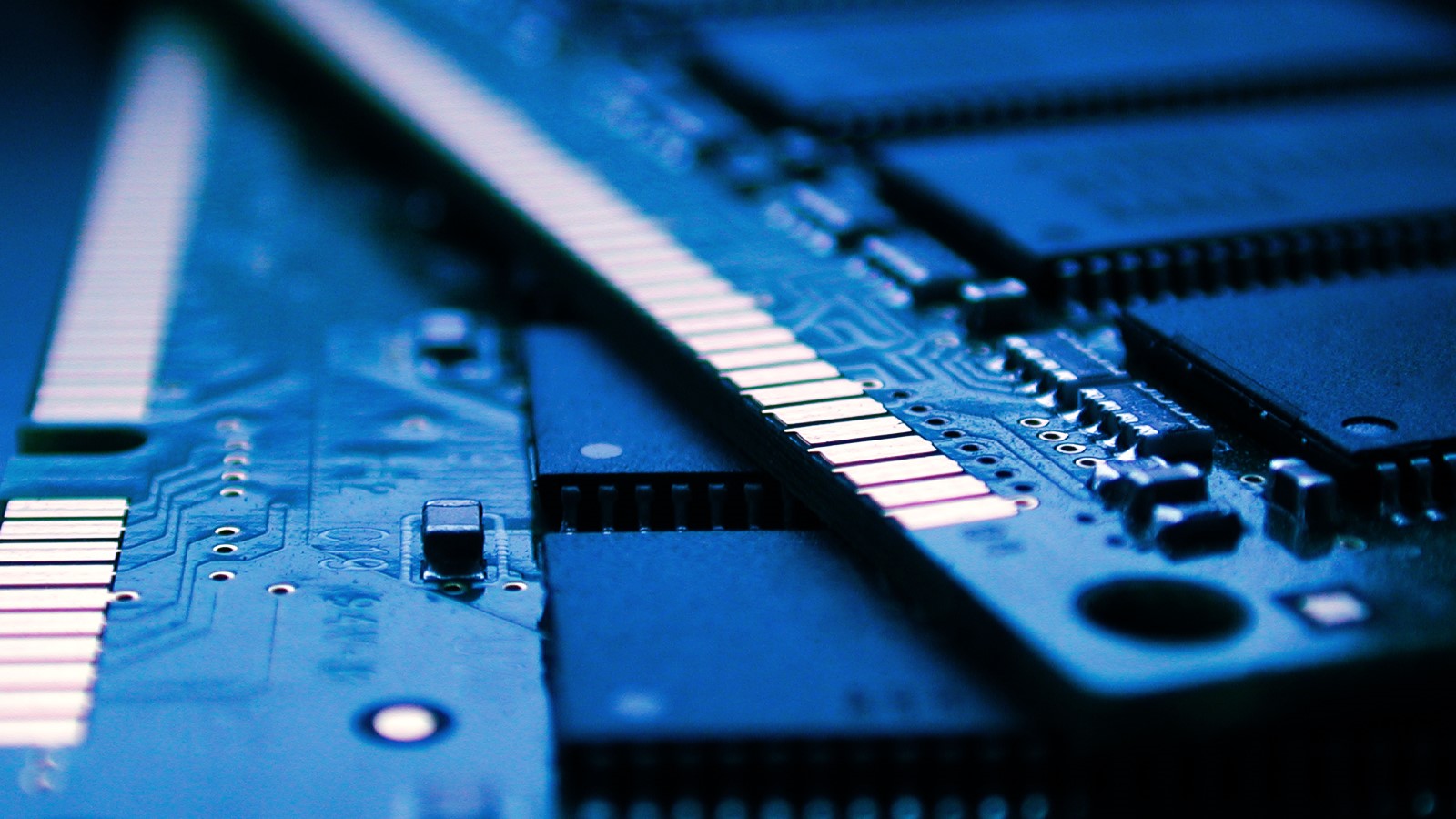
Expansion Slots
- PCIe (Peripheral Component Interconnect Express)
- x1 → small cards
- x16 → graphics cards
CMOS Battery
- Maintains BIOS/UEFI settings
- Failure causes time reset
Power Connectors
- 24-pin motherboard power
- 4/8-pin CPU power
Form Factors (MEMORIZE)
|
Type |
Description |
|
ATX |
Standard desktop |
|
Micro-ATX |
Smaller |
|
Mini-ITX |
Compact systems |
3.3 Central Processing Unit (CPU)
CPU Basics
- “Brain” of the computer
- Executes instructions
CPU Features
|
Feature |
Description |
|
Cores |
Physical processing units |
|
Threads |
Virtual cores |
|
Clock Speed |
GHz rating |
|
Cache |
Fast memory (L1, L2, L3) |
Cooling the CPU
- Heat sink
- Fan
- Thermal paste (critical for heat transfer)
3.4 RAM (Memory)
Types of RAM
|
Type |
Description |
|
DDR4 |
Common |
|
DDR5 |
Faster, newer |
RAM Characteristics
- Volatile (data lost when power off)
- Measured in GB
- Speed measured in MHz
Form Factors
|
Type |
Use |
|
DIMM |
Desktop |
|
SODIMM |
Laptop |
3.5 Storage Devices
Types of Storage
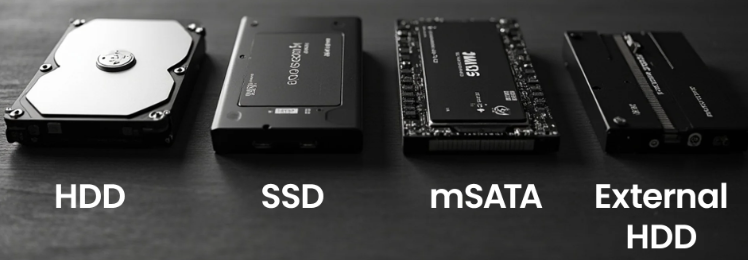
HDD (Hard Disk Drive)
- Mechanical
- Slower
- Larger capacity
SSD (Solid State Drive)
- No moving parts
- Faster boot times
NVMe SSD
- Uses PCIe
- Fastest storage type
Interfaces
|
Interface |
Use |
|
SATA |
HDD/SSD |
|
PCIe |
NVMe |
3.6 Power Supply Unit (PSU)
Function:
Converts AC power → DC power for components
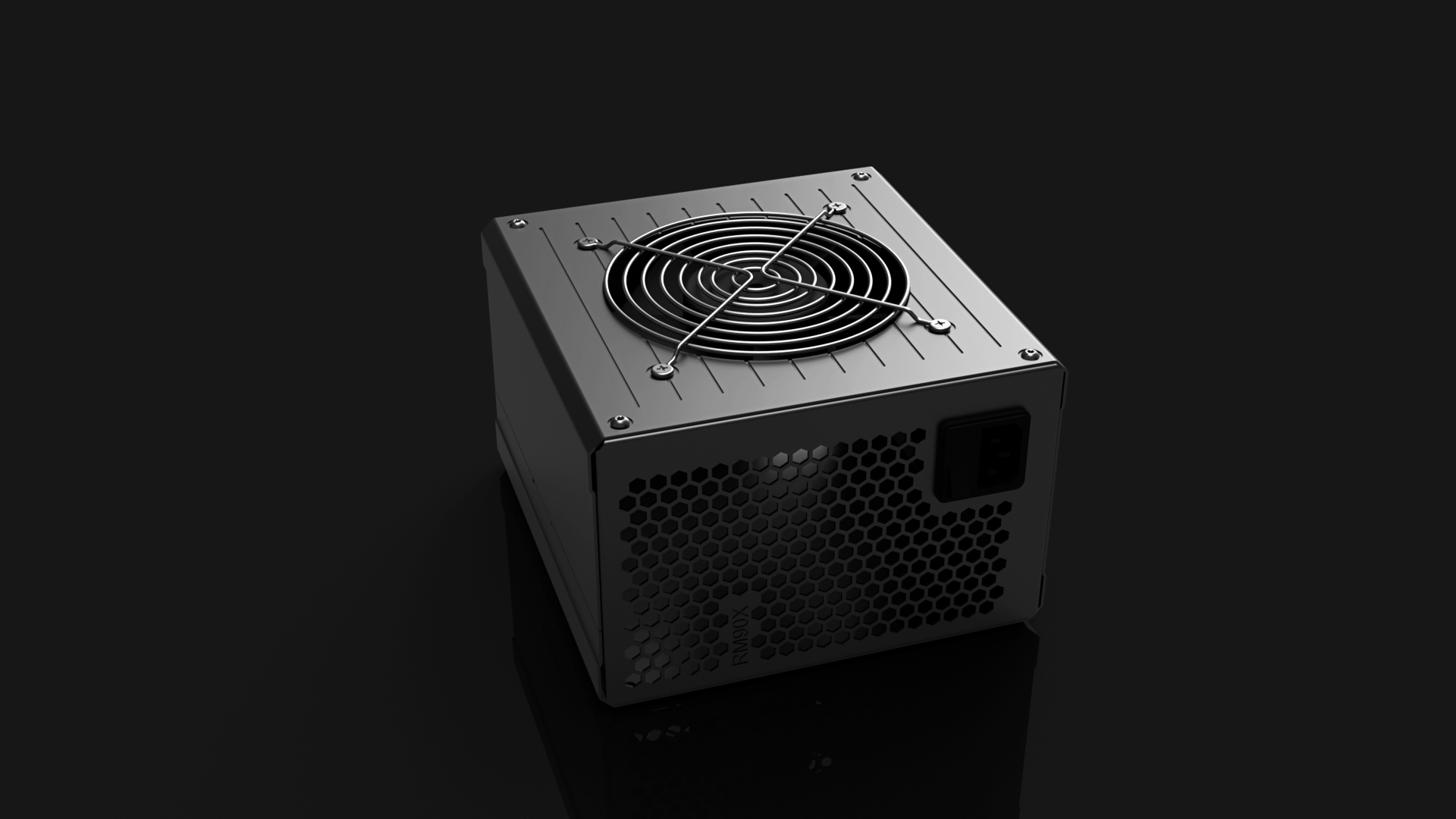
Connectors:
- 24-pin motherboard
- 4/8-pin CPU
- SATA power
- PCIe (GPU)
Wattage:
- Must support all components
- High-end GPUs require more power
3.7 Expansion Cards
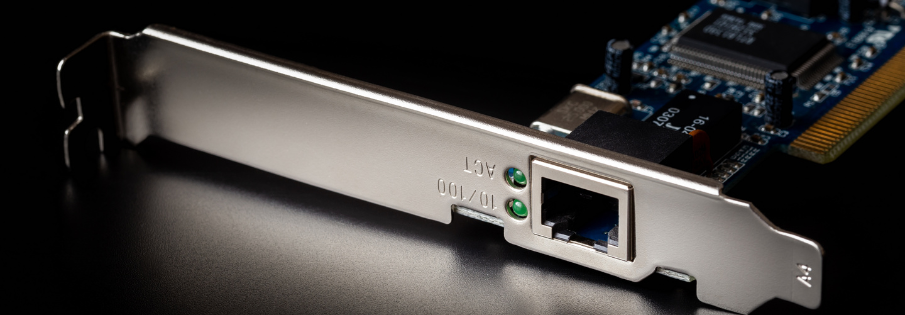
Common Types
|
Card |
Purpose |
|
GPU |
Graphics processing |
|
NIC |
Network connection |
|
Sound Card |
Audio processing |
|
RAID Card |
Storage control |
3.8 Input Devices
Examples:
- Keyboard
- Mouse
- Touchscreen
- Scanner
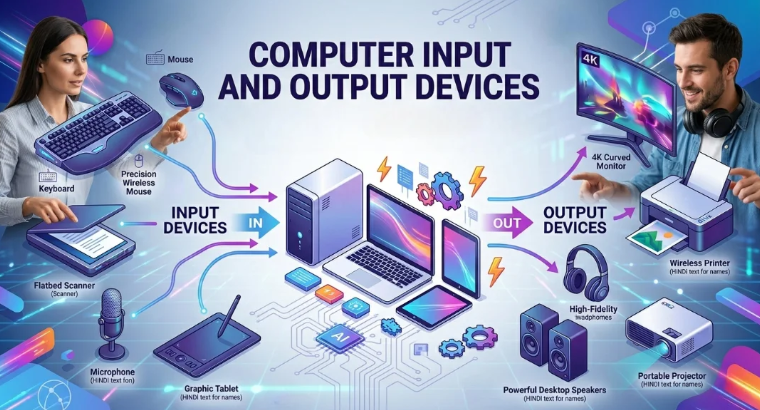
Types:
- Wired (USB)
- Wireless (Bluetooth)
3.9 Output Devices
Monitors
Types:
- LCD
- LED
- OLED
Display Specs:
|
Spec |
Meaning |
|
Resolution |
Clarity (1080p, 4K) |
|
Refresh Rate |
Smoothness (Hz) |
|
Response Time |
Speed |
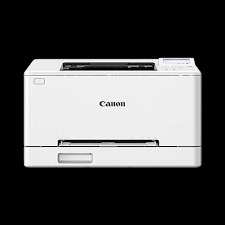
Printers
Types:
|
Type |
Description |
|
Inkjet |
Home use |
|
Laser |
Office, fast |
|
Thermal |
Receipts |
3.10 Connectors & Cables
Video Connectors
|
Type |
Use |
|
HDMI |
Audio + video |
|
DisplayPort |
High resolution |
|
VGA |
Analog (legacy) |
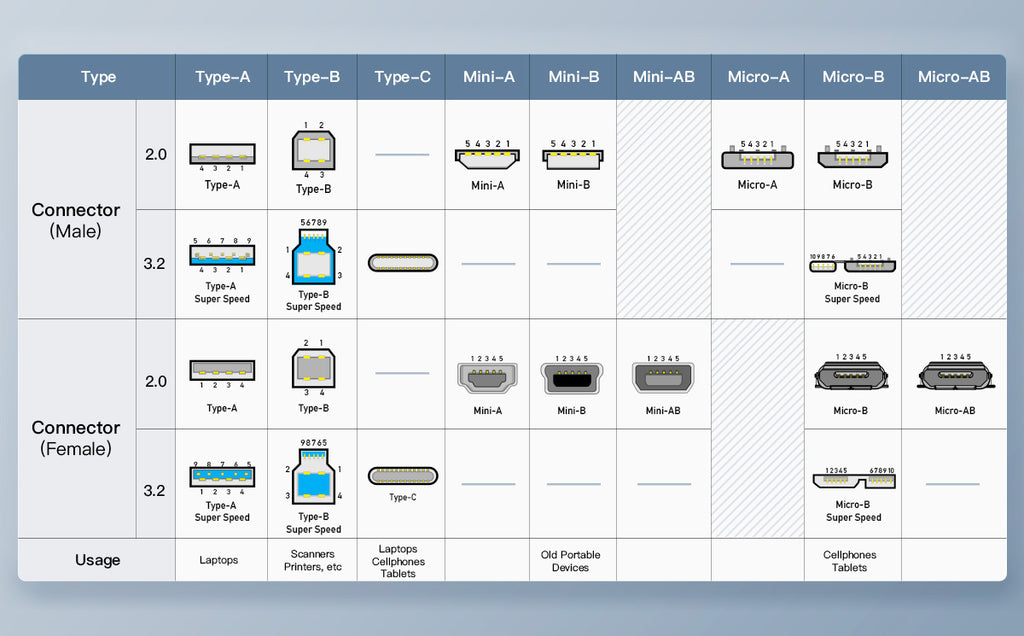
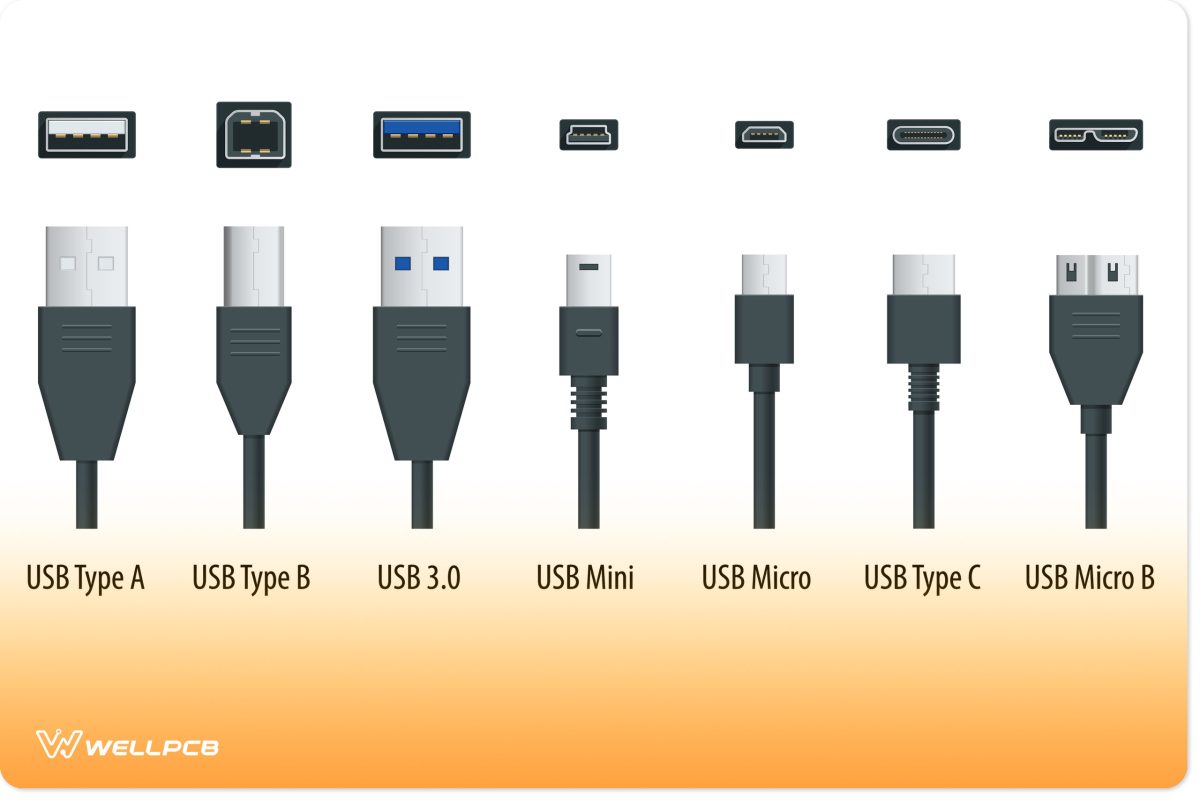
USB Standards
|
Type |
Description |
|
USB 2.0 |
Slower |
|
USB 3.x |
Faster |
|
USB-C |
Reversible, modern |
3.11 BIOS / UEFI
BIOS vs UEFI
|
Feature |
BIOS |
UEFI |
|
Speed |
Slower |
Faster |
|
Interface |
Text |
GUI |
|
Security |
Basic |
Secure Boot |
Functions:
- Boot order
- Hardware configuration
- System diagnostics
3.12 Hardware Installation
General Steps:
- Power off system
- Unplug power
- Use ESD protection
- Install component
- Reconnect and test
Safety:
- Avoid static electricity
- Handle components by edges
3.13 Hardware Troubleshooting
Common Issues
No Power
Causes:
- PSU failure
- Loose cables
No Display
Causes:
- GPU issue
- Monitor cable
Beep Codes
- Indicate hardware errors
- Vary by manufacturer
Overheating
Causes:
- Dust buildup
- Fan failure
Slow Performance
Causes:
- Low RAM
- HDD bottleneck
3.14 Preventive Maintenance
Cleaning:
- Remove dust regularly
- Clean fans and vents
Updates:
- BIOS updates
- Driver updates
Safety:
- Surge protectors
- Proper shutdowns
Videos Hardware
3.1 – Displays
Our displays provide an important output technology, and there are many options for display types, configurations, and specifications. In this video, you’ll learn about LCD technologies, OLED, Mini LED, touchscreens, digitizers, and inverters.
Display technologies can vary, and it’s important to purchase the best monitor for the task at hand. In this video, you’ll learn about pixel density, refresh rates, screen resolution, and color gamut.
3.2 – Cables and Connectors
We rely on our network cables to provide high-speed connectivity. In this video, you’ll learn about twisted pair cables, unshielded vs. shielded, direct burial STP cable, and plenum-rated cable.
Network cables use a standard color scheme to maintain consistency around the world. In this video, you’ll learn about T568A and T568B color schemes for eight-conductor twisted pair cabling.
Many organizations use optical fiber to connect locations over high-speed network topologies. In this video, you’ll learn the fundamentals of optical fiber and the differences between multimode fiber and single-mode fiber.
There are standard methods for connecting peripheral devices to our computers. In this video, you’ll learn about USB, USB-C, serial cables, and Thunderbolt technologies.
Our monitors and displays connect to our computers using a number of different methods. In this video, you’ll learn about HDMI, DisplayPort, DVI, VGA, and video over USB-C.
Many of the storage devices in our modern computers rely on a cable for connectivity. In this video, you’ll learn about connecting drives with SATA and eSATA interfaces.

We don’t always have exactly the right cable or connector, but we might have a handy adapter or converter. In this video, you’ll learn about converting or adapting DVI to HDMI, DVI, to VGA, USB to Ethernet, USB-C to USB-A, or using one of the many interfaces on a USB hub.
Do you have the right cable for the job? In this video, you’ll learn about RJ11, RJ45, F-connectors, punchdown blocks, USB, USB-C, Molex, Lightning, and DB-9 connectors.
Optical fiber allows for high-speed communication over long distances. In this video, you’ll learn about fiber optic SC, ST, and LC connectors.
3.3 – Memory
Memory is one of the most important components of any computer. In this video, you’ll learn about RAM, DIMMs, SO-DIMMs, SDRAM, and DDR3, DDR4, and DDR5 memory.
Memory technologies include features to identify errors, correct issues, and improve performance. In this video, you’ll learn about parity memory, ECC memory, and multi-channel RAM.
3.4 – Storage Devices
There are many different options available for long-term data storage. In this video, you’ll learn about hard drives, solid state drives, PCIe storage, NVME, serial attached SCSI, mSATA, M.2, flash memory, and optical drives.
We can combine multiple drives together to optimize data throughput and provide redundancy. In this video, you’ll learn about the redundant array of independent disks (RAID), and an overview of RAID 0, RAID 1, RAID 5, RAID 6, and RAID 1+0.
3.5 – Motherboards

When purchasing or building a computer, you have a many options for motherboard type and form factor. In this video, you’ll learn about the ATX motherboard standard, the micro-ATX standard, and the ITX motherboard form factors.

If you’re adding on features to an existing motherboard, then you may be connecting to one of the available expansion slots. In this video, you’ll learn about PCI (Peripheral Component Interconnect) and PCIe (PCI Express) expansion slot technologies.
There are many connectors on a typical motherboard. In this video, you’ll learn about power connections, storage drive interfaces, and working with motherboard header pins.

There are many options available for motherboard features and capabilities. In this video, you’ll learn about the differences between Intel-based and AMD-based motherboards and the specifications commonly found on server motherboards.
The BIOS is responsible for getting our systems running each time we hit the start button. In this video, you’ll learn about the Basic Input/Output System and how the UEFI BIOS is used to manage and protect our modern computer systems.
The BIOS configuration options provide extensive customization. In this video, you’ll learn about boot options, USB permissions,
The trusted platform module (TPM) is an important security feature on today’s motherboards. In this video, you’ll learn about the technologies and use cases of TPMs and hardware security modules (HSMs).
Our modern CPUs include a number of valuable features. In this video, you’ll learn about the differences between 32-bit and 64-bit processors, the advantages associated with ARM processors, and how CPU cores can be a useful measurement of processing power.
Our computers are designed for expandability through the use of expansion cards. In this video, you’ll learn about sound cards, video adapters, capture cards, network interface cards, and best practices for installing new drivers.
One of the by-products of computing is the generation of heat. In this video, you’ll learn how we cool our computing systems using fans, passive cooling, heat sinks, thermal paste, thermal pads, and liquid cooling.
3.6 – Power
Without power, our computers aren’t very useful. In this video, you’ll learn about computer power supplies, power specifications, redundant power supplies, and power supply efficiency ratings.
3.7 – Multifunction Devices
Today’s all-in-one multifunction devices can act as a printer, scanner, copier, and more. In this video, you’ll learn about setting up a multifunction device, configuring a printer language, setting individual print features, configuring badging and secure printing, and working with a flatbed scanner.
3.8 – Printers
Laser printers are complex output devices. In this video, you’ll learn how to maintain a laser printer, including toner cartridge replacement, maintenance kit installation, printer calibration, and cleaning.
Inkjet printers provide an inexpensive method of high-resolution color output. In this video, you’ll learn about inkjet printer operation, ink cartridges, print heads, feed rollers, carriage and belt, and inkjet printer calibration.
Inkjet printer maintenance can keep your printer running at peak efficiency. In this video, you’ll learn about cleaning print heads, replacing inkjet cartridges, inkjet printer calibration, and clearing jams.
Thermal printers use heat to create the output. In this video, you’ll learn about thermal printers, feed assemblies, heating elements, and thermal paper.
Maintaining a thermal printer involves a number of different tasks. In this video, you’ll learn about thermal paper replacement, heating element cleaning, removing debris, and thermal paper sensitivity to heat.

Impact printers use a print head to physically press against a page to create the printed output. In this video, you’ll learn about dot-matrix printers, printer heads, printer ribbons, tractor feeds, and multipart paper.
Maintaining a dot-matrix printer includes a number of basic tasks. In this video, you’ll learn about ribbon replacement, print head replacement, and paper replacement.
CompTIA A+ Core 1 | Domain 3: Hardware | Knowledege Check
What is the fastest storage type?
A. HDD
B. SATA SSD
C. NVMe
D. USB
What connects all components?
A. CPU
B. Motherboard
C. RAM
D. PSU
Which RAM type is used in laptops?
A. DIMM
B. SODIMM
C. VRAM
D. Cache
What does PSU do?
A. Stores data
B. Processes data
C. Converts power
D. Displays output
What improves CPU cooling?
A. More RAM
B. Thermal paste
C. SSD
D. GPU
Answers: 1-C, 2-B, 3-B, 4-C, 5-B