
CompTIA A+ Core 1 | Domain 1: Mobile Devices (13%) | Reading (4 &10)

1.1 Laptop Hardware Overview
Laptops are portable computers with integrated components, meaning many parts are compact and sometimes proprietary.
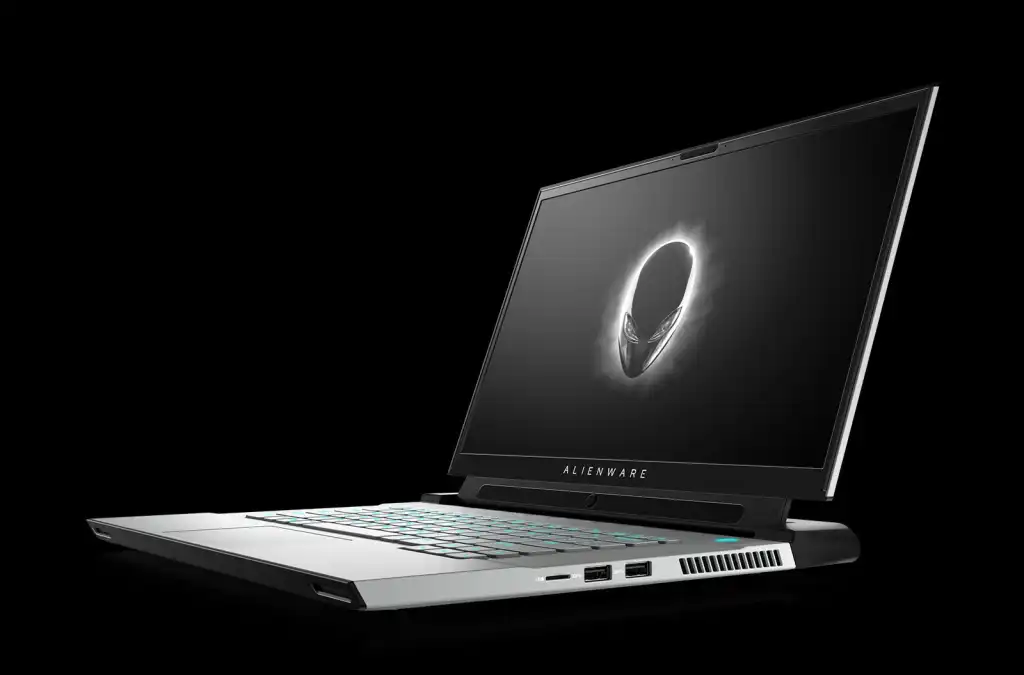
Key Laptop Components
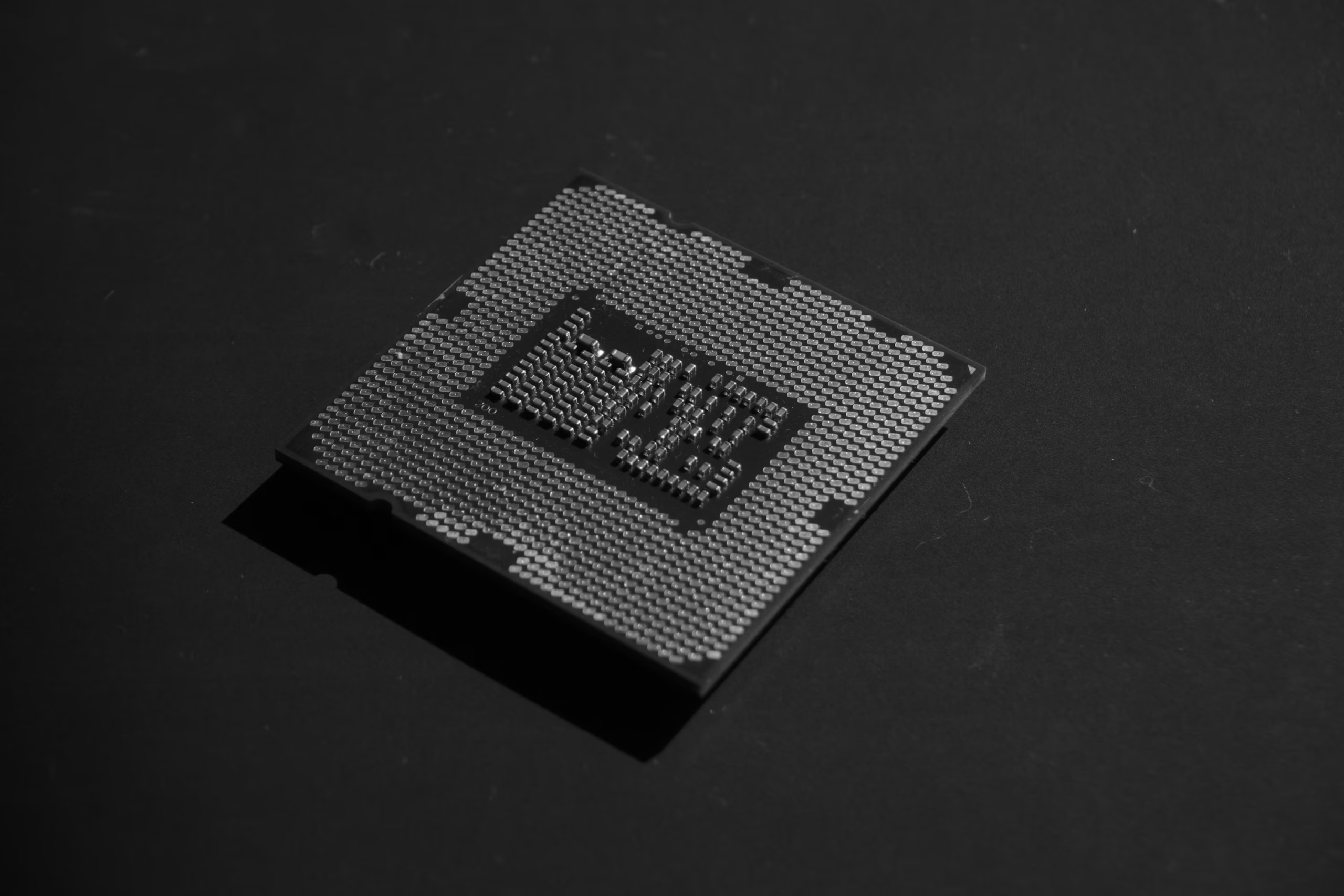
CPU (Processor)
- Soldered onto the motherboard in most modern laptops
- Determines performance (cores, threads, clock speed)
- Mobile CPUs are optimized for low power consumption
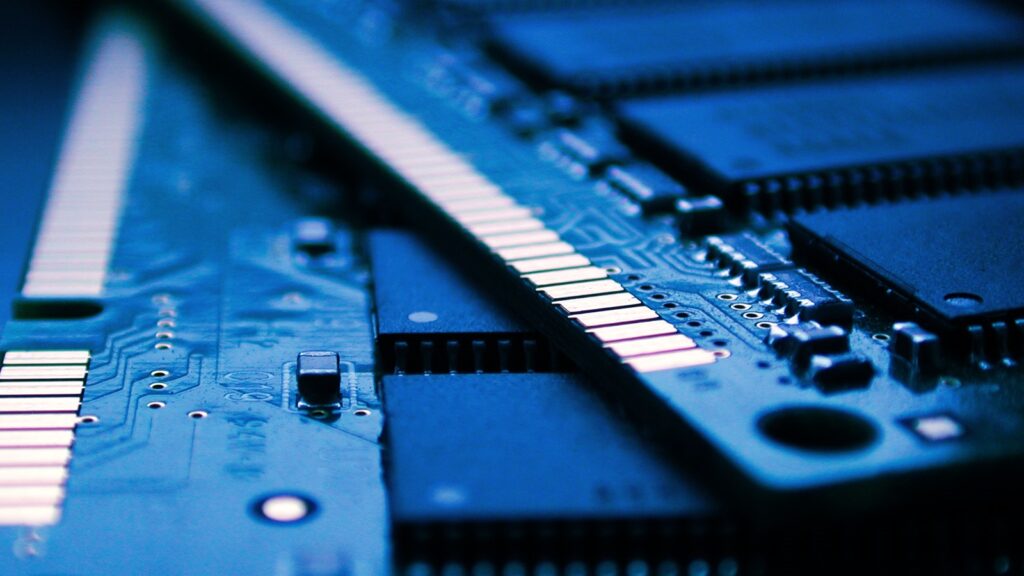
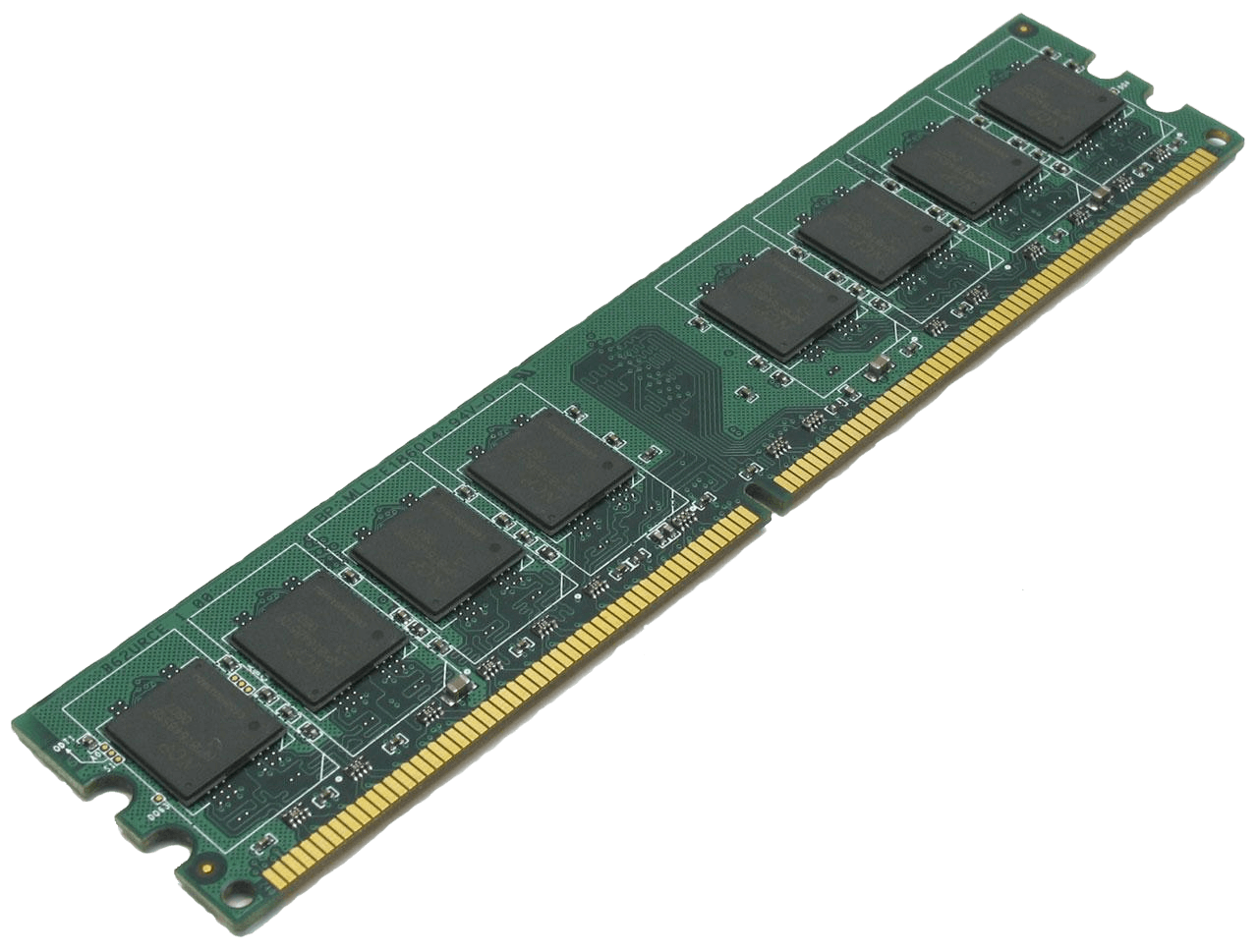
RAM (Memory)
- Types:
- SODIMM (Small Outline DIMM)
- DDR4 / DDR5
- Some laptops:
- Upgradeable
- Others have soldered RAM (non-upgradable)
 Storage Devices
- HDD (Hard Disk Drive) – slower, mechanical
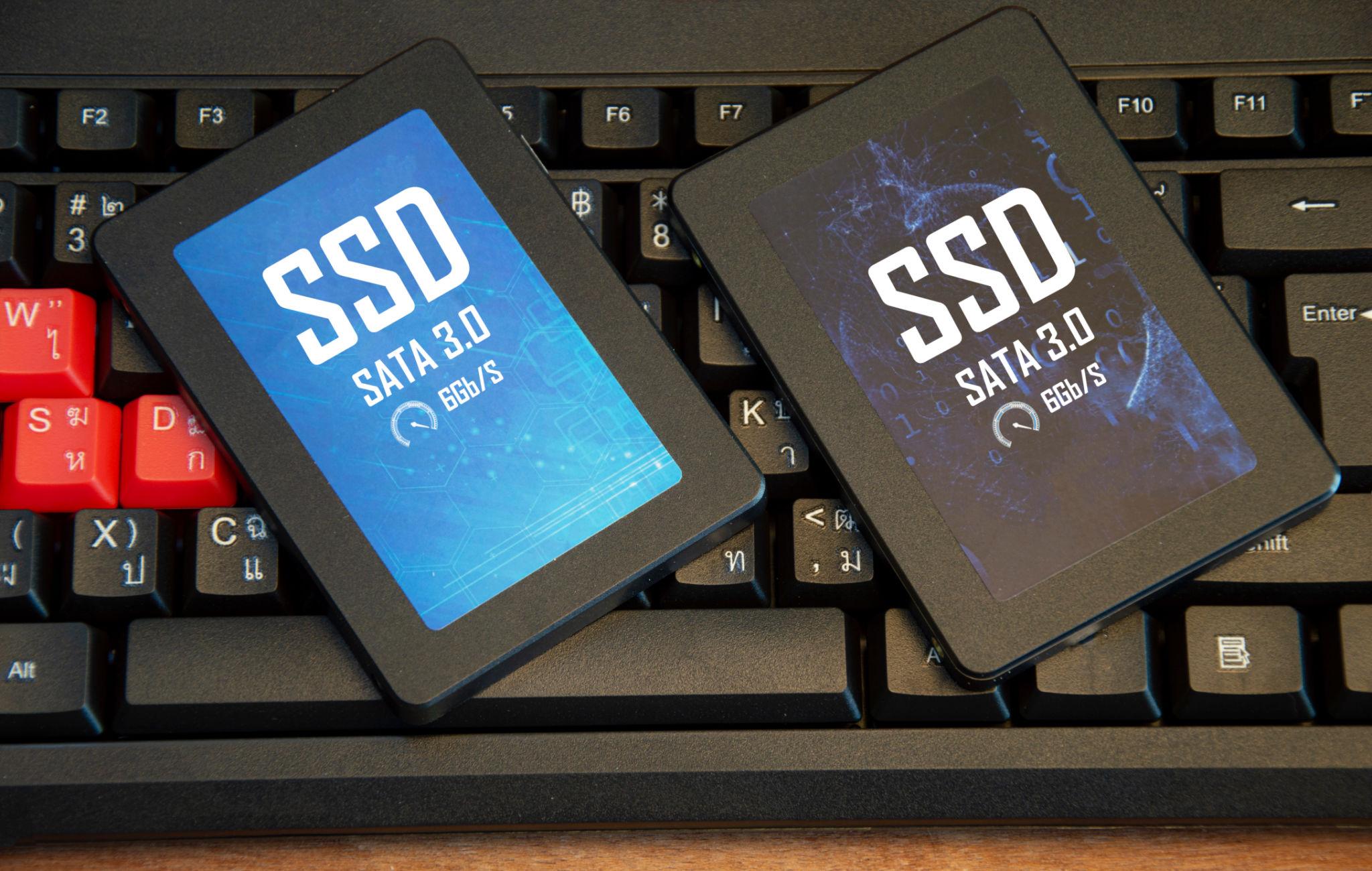
- SSD (Solid State Drive) – faster, no moving parts
- NVMe SSD – fastest, uses PCIe interface
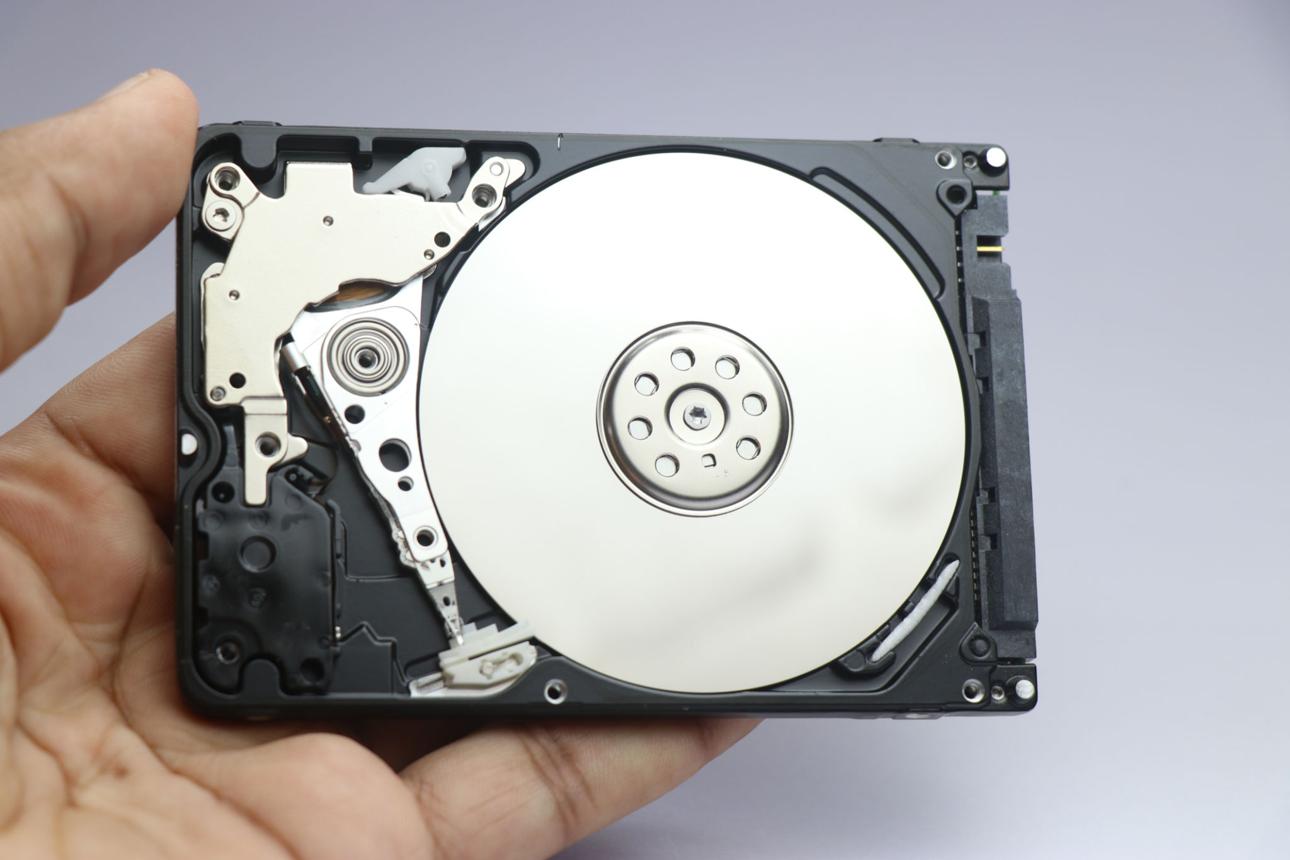
SSD
Battery
- Lithium-ion (Li-ion) or Lithium-polymer (LiPo)
- Limited charge cycles (~300–500)
- Symptoms of failure:
- Swelling
- Rapid drain
- Not charging
Keyboard & Touchpad
- Built-in input devices
- Touchpads support gestures (multi-touch)
Cooling System
- Heat sink + fan
- Prevents overheating
- Dust buildup can reduce efficiency
Laptop Ports & Connectors
|
Port Type |
Purpose |
|
USB-A / USB-C |
Data transfer, charging |
|
HDMI |
External display |
|
Thunderbolt |
High-speed data + video |
|
Ethernet (RJ-45) |
Wired networking |
|
Audio jack |
Headphones/mic |
|
SD card reader |
Storage expansion |
Docking Stations & Port Replicators
Docking Station
- Adds multiple ports (video, USB, network)
- Used in office environments
- Can charge laptop
Port Replicator
- Simpler version of docking station
- Primarily expands ports
1.2 Mobile Device Types
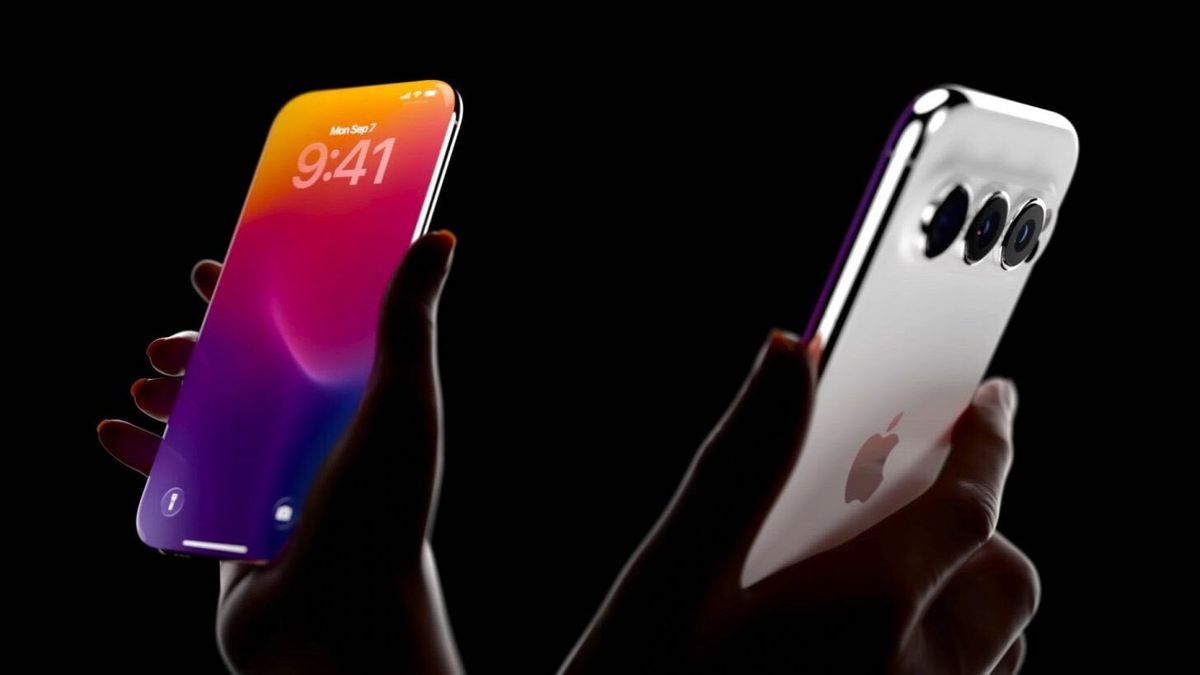
Smartphones
- Full-featured mobile OS (Android, iOS)
- Cellular connectivity (4G LTE, 5G)
- App ecosystems
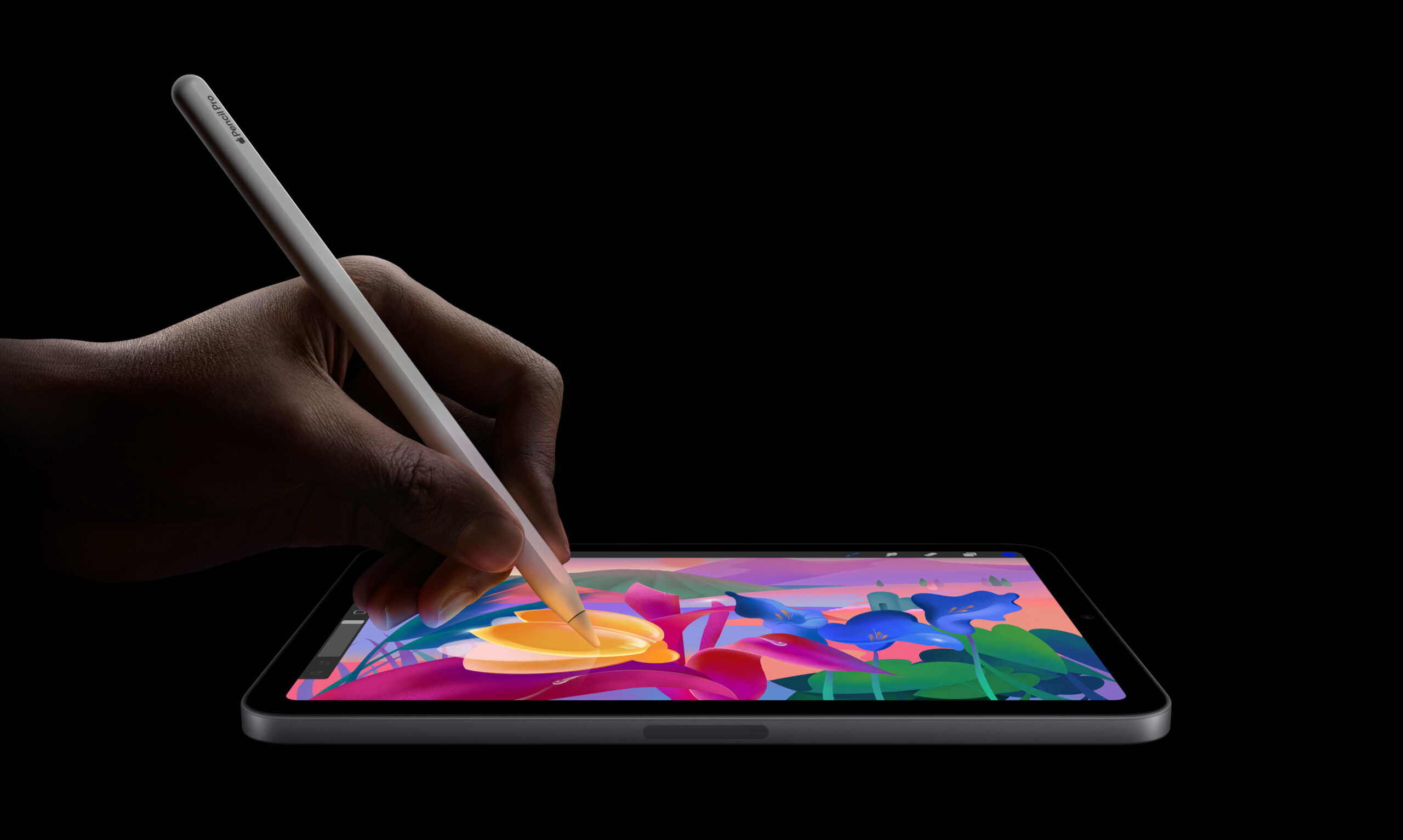
Tablets
- Larger screens than smartphones
- Touch-based interface
- Often used in business and education
Wearables
- Smartwatches, fitness trackers
- Monitor health metrics (heart rate, steps)
1.3 Mobile Device Accessories
Chargers & Cables
- USB-C (modern standard)
- Lightning (Apple devices)
- Fast charging technologies
Accessories
- Bluetooth headphones
- External keyboards
- Stylus pens
External Battery Packs (Power Banks)
- Provide portable charging
- Rated in mAh (milliamp hours)
1.4 Mobile Device Connectivity
Wireless Technologies
Wi-Fi
- Standards:
- 802.11ac (Wi-Fi 5)
- 802.11ax (Wi-Fi 6)
- Frequency bands:
- 2.4 GHz (longer range)
- 5 GHz (faster speeds)
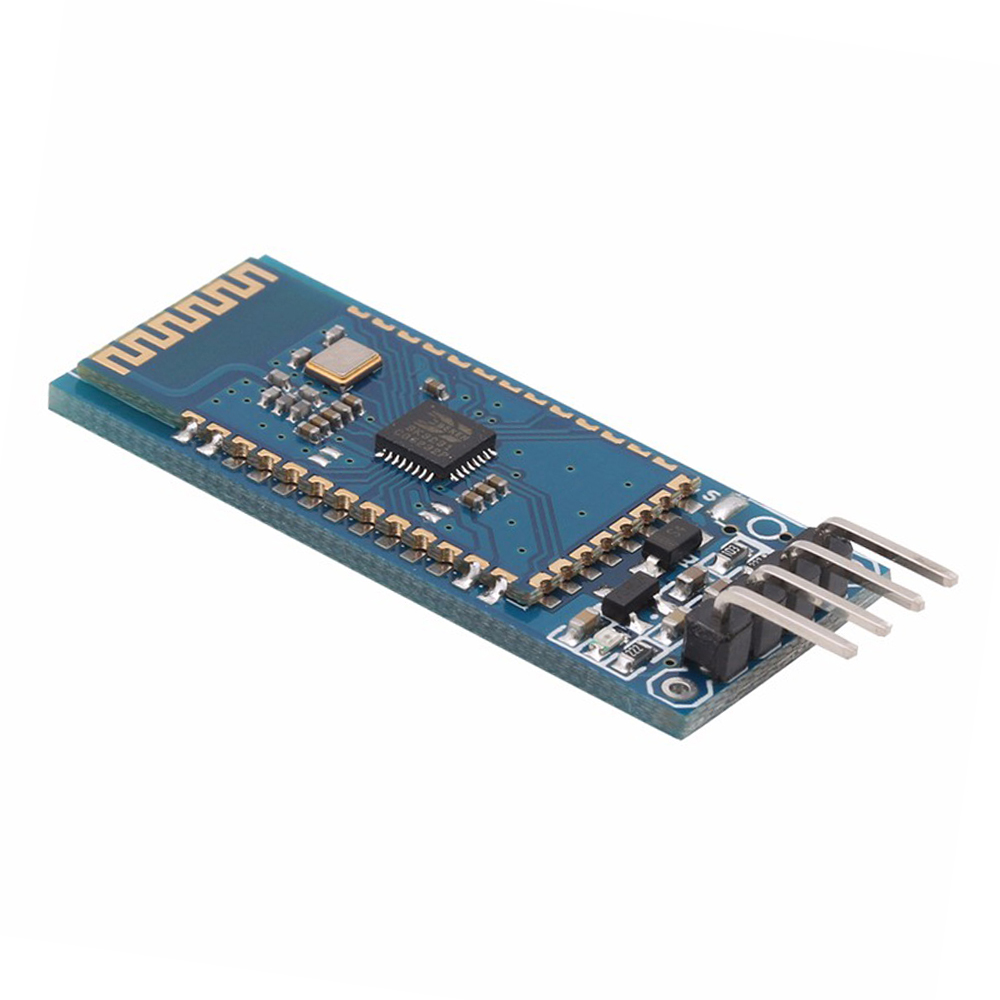
Bluetooth
- Short-range communication
- Used for:
- Headphones
- Keyboards
- File transfer
Cellular Networks
- 4G LTE
- 5G (faster speeds, lower latency)
NFC (Near Field Communication)
- Very short range (~4 cm)
- Used for:
- Contactless payments
- Device pairing
1.5 Mobile Device Configuration
Email Setup Protocols
|
Protocol |
Description |
|
POP3 |
Downloads and removes email from server |
|
IMAP |
Syncs email across devices |
|
Exchange |
Enterprise email system |
Synchronization
- Sync contacts, calendars, email
- Uses cloud services (Google, Apple, Microsoft)
Security Settings
Screen Locks
- PIN
- Password
- Pattern
Biometrics
- Fingerprint
- Face recognition
Remote Security
- Remote wipe
- Device tracking (Find My Device)
1.6 Mobile Device Management (MDM)
What is MDM?
- Centralized management of mobile devices in organizations
Key Features:
- Remote configuration
- App management
- Security enforcement
- Remote wipe
Use Cases:
- Corporate phones
- Bring Your Own Device (BYOD)
1.7 Mobile Device Troubleshooting
Common Issues & Solutions
No Power
Causes:
- Dead battery
- Faulty charger
- Hardware failure
Fix:
- Try different charger
- Check charging port
- Replace battery
Battery Drains Quickly
Causes:
- Background apps
- High brightness
- Old battery
Fix:
- Close apps
- Reduce brightness
- Replace battery
No Connectivity
Causes:
- Airplane mode enabled
- Weak signal
- Incorrect settings
Fix:
- Toggle airplane mode
- Reset network settings
- Reconnect Wi-Fi
Frozen Screen
Fix:
- Force restart
- Remove problematic app
No Sound
Causes:
- Volume muted
- Bluetooth device connected
Fix:
- Check volume
- Disable Bluetooth
1.8 Proper Laptop Disassembly (Exam Critical)
Safety First:
- Power off device
- Remove battery (if removable)
- Use anti-static protection (ESD strap)
General Disassembly Steps:
- Remove screws
- Use plastic pry tools
- Disconnect battery
- Replace component
- Reassemble and test
Important Notes:
- Keep track of screws (different sizes)
- Avoid touching motherboard components
- Follow manufacturer guidelines
Section 1: Mobile Devices
1.1 – Laptop Hardware

1.2 – Mobile Device Configuration

1.3 – Mobile Connectivity


Mobile Device Management (8:31)
Most organizations must manage hundreds or thousands of mobile devices. In this video, you’ll learn about mobile device management (MDM), device ownership options using BYOD and COPE, data synchronization challenges, and managing business applications.
CompTIA A+ Core 1 | Domain 1: Mobile Devices | Knowledge Check
- Which laptop RAM type is commonly used?
A. DIMM
B. SODIMM
C. SIMM
D. VRAM - What technology allows tap-to-pay?
A. Bluetooth
B. Wi-Fi
C. NFC
D. LTE - Which email protocol syncs across devices?
A. POP3
B. IMAP
C. SMTP
D. SNMP
(Answers: 1-B, 2-C, 3-B)