
Phase 4 – Designing with Elementor
Topics
-
Installing Elementor
-
Creating Layouts
-
Responsive Design
-
Building Landing Pages
-
Visual Design Principles
Phase 4 – Designing with Elementor
Module Overview
Elementor is one of the most popular page-building tools available for WordPress. It allows users to create professional-looking webpages using a simple drag-and-drop interface without requiring coding knowledge.
In this phase, students will learn how to install Elementor, create webpage layouts, build responsive websites for different devices, design landing pages, and apply visual design principles that improve user experience.
Learning Objectives
Upon completion of this module, students will be able to:
-
Install and activate the Elementor plugin.
-
Navigate the Elementor workspace.
-
Create webpage layouts using sections, containers, and widgets.
-
Design websites that work on desktop, tablet, and mobile devices.
-
Build effective landing pages.
-
Apply visual design principles to improve usability and appearance.
-
Publish professionally designed webpages.
Topic 1: Installing Elementor
What is Elementor?
Elementor is a visual page builder plugin for WordPress that allows users to design webpages through drag-and-drop editing.
Benefits of Elementor
-
No coding required
-
Real-time visual editing
-
Mobile-responsive design tools
-
Professional templates
-
Fast website development
Installing Elementor
Step 1: Log in to WordPress
Navigate to:
yourdomain.com/wp-admin
Enter your username and password.
Step 2: Access Plugins
From the Dashboard:
Plugins → Add New Plugin
Step 3: Search for Elementor
Type: Elementor Website Builder
Select the Elementor plugin.
Step 4: Install Plugin
Click:
Install Now
Wait for the installation to complete.
Step 5: Activate Plugin
Click:
Activate
Elementor is now ready for use.
Topic 2: Creating Layouts
Understanding Website Layouts
A webpage layout is the structure and arrangement of content on a page.
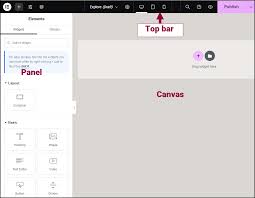
Good layouts help visitors:
-
Find information quickly
-
Navigate easily
-
Understand page content
Elementor Layout Components
Sections (Containers)
Containers organize content into groups.
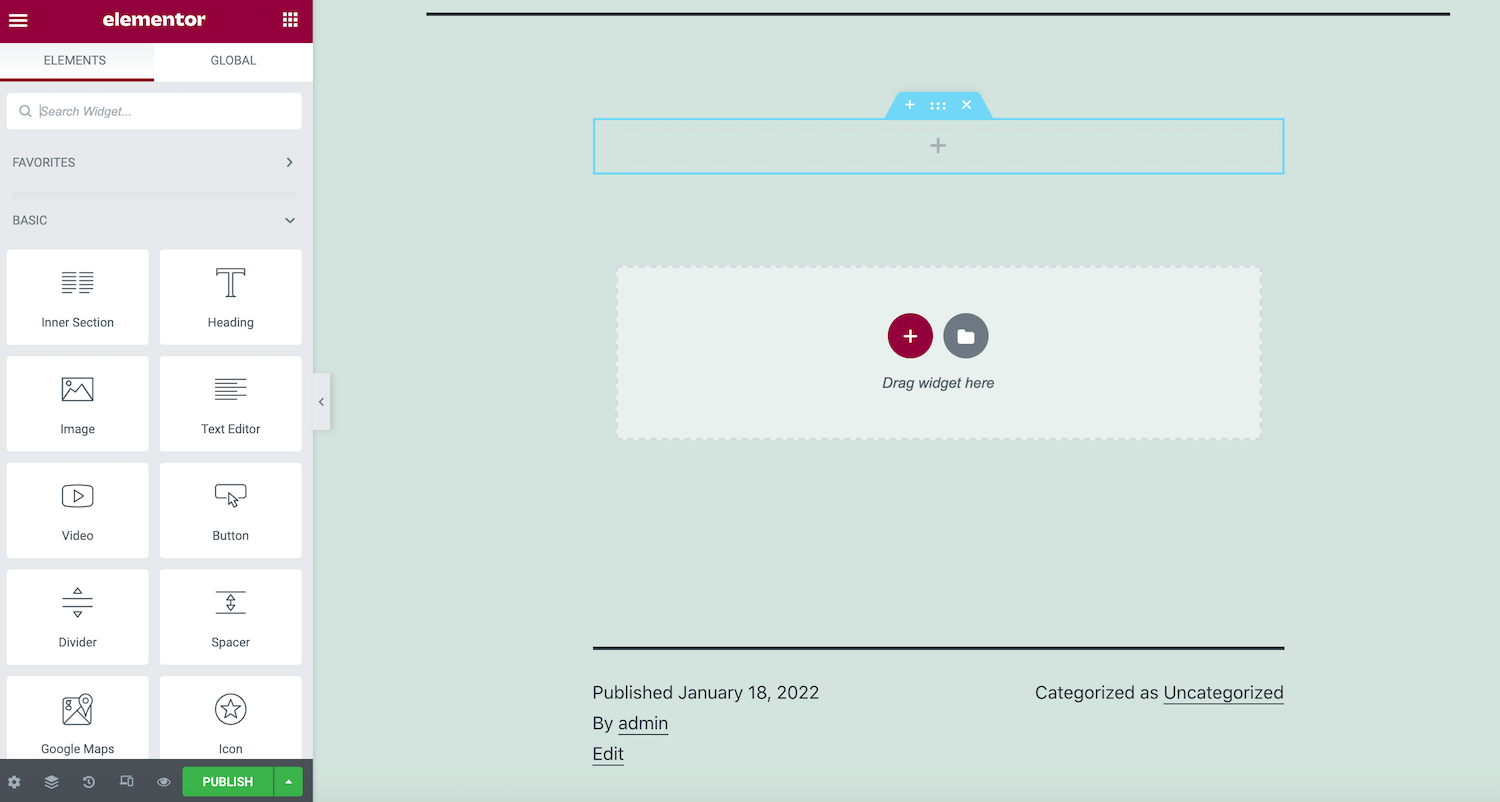
Examples:
-
Header Section
-
About Section
-
Contact Section
Widgets
Widgets are individual content elements.
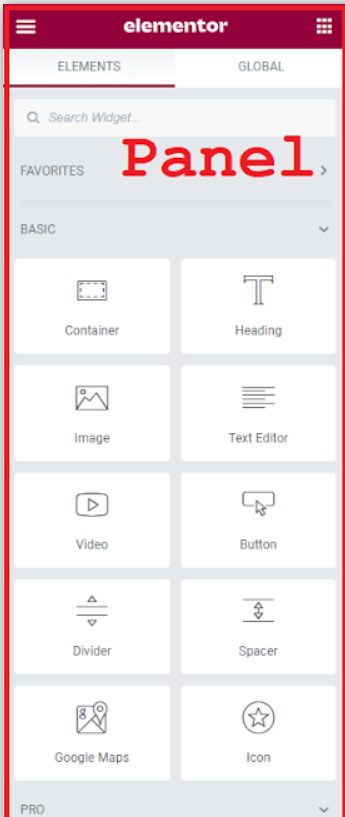
Common widgets include:
-
Heading
-
Text Editor
-
Image
-
Button
-
Video
-
Divider
-
Icon
Creating a Basic Layout
Example Homepage Structure
Header
↓
Welcome Message
↓
About Me
↓
Projects
↓
Contact Information
Lab Activity
Create a homepage containing:
-
Page title
-
Welcome message
-
Image
-
Button linking to another page
Topic 3: Responsive Design
What is Responsive Design?
Responsive Design ensures a website looks good and functions properly on different devices.
Examples:
-
Desktop Computers
-
Laptops
-
Tablets
-
Smartphones
Why Responsive Design Matters
More than half of website visitors use mobile devices.
Responsive websites:
-
Improve user experience
-
Load properly on smaller screens
-
Rank better in search engines
Responsive View in Elementor
Elementor allows designers to preview websites on:
- Desktop View
- Large screen display
- Tablet View
- Medium screen display
- Mobile View
- Small screen display
Mobile Optimization Tips
-
Use readable font sizes
-
Avoid large images
-
Keep navigation simple
-
Ensure buttons are easy to tap
Lab Activity
Test your homepage using:
□ Desktop View
□ Tablet View
□ Mobile View
Make necessary adjustments.
Topic 4: Building Landing Pages
What is a Landing Page?
A landing page is a webpage designed to encourage visitors to take a specific action.
Examples:
-
Contact You
-
Request Information
-
Join a Mailing List
-
View Your Portfolio
Characteristics of Effective Landing Pages
- Clear Headline
- Tell visitors what the page is about.
Example:
“Welcome to My Professional Portfolio”
Strong Visuals
- Use relevant images and graphics.
Call-to-Action (CTA)
Encourage visitors to take action.
Examples:
-
Contact Me
-
Learn More
-
View Projects
Simple Design
- Avoid clutter and distractions.
Landing Page Structure
-
Header
-
Main Headline
-
Introduction
-
Features or Services
-
Call-to-Action Button
-
Contact Information
Lab Activity
Create a landing page containing:
-
Headline
-
Introduction
-
Image
-
Button
-
Contact Section
Topic 5: Visual Design Principles
What is Visual Design?
- Visual Design focuses on the appearance and usability of a website.
- Good design improves user engagement and professionalism.
Principle 1: Alignment
- Keep elements organized and properly positioned.
- Good alignment creates structure and balance.
Principle 2: Contrast
Use contrasting colors to improve readability.
Examples:
- Dark Text + Light Background
- Light Text + Dark Background
Principle 3: Consistency
Use the same:
-
Fonts
-
Colors
-
Button styles
-
Spacing
throughout the website.
Principle 4: White Space
White space refers to empty areas between elements.
Benefits:
-
Reduces clutter
-
Improves readability
-
Creates a professional appearance
Principle 5: Visual Hierarchy
Important information should stand out first.
Examples:
-
Large Headings
-
Bold Text
-
Call-to-Action Buttons
Common Design Mistakes
Avoid:
-
Too many colors
-
Excessive text
-
Tiny font sizes
-
Poor image quality
-
Cluttered layouts
Elementor
- Getting Started with Elementor
- Installing Hello and Setting Up
- Elementor Editor Basics
- Building the Design System
Website Essentials
Video