Step-by-Step: MS Word Project 8
1. Set Up the Document
-
Open Microsoft Word
-
Click Blank Document
-
Set default font:
-
Go to Home tab
-
Choose Calibri, size 12
-
2. Create the Title Section
- Type:
New Employee Checklist
NYC Corporation - Format:
- Highlight both lines
- Center align
- Make bold
- Increase size slightly (optional for emphasis)
3. Insert the Table
- Go to Insert → Table
- Create a table with:
- 6 columns
- Enough rows (about 12–15)
- In the first row, type headers:
Steps | Location | Task | Type | Completed
4. Fill in Table Content
Row Entries:
Step 1 Section
- Step:
1 - Location:
Anchorage - Tasks:
- Register
- Company information
- New Hire rules
- Setup email account
- Type:
- Handout
- Project
- Project
- Project
Step 2 Section
- Step:
2 - Location:
Seattle - Tasks:
- Video
- Business cards
- Website
- VPN
- Type:
- Project
- Project
- Project
- Reading
Leave Completed column blank
5. Add Additional Text Sections
Below the table, type:
Seattle
Miami
Los Angeles
Miami
Los Angeles
Format:
- Font: Calibri
- Size: 14
6. Insert Special Symbols
- Go to Insert → Symbol → More Symbols
- Insert:
- £
- ™
- ©
- ¢
7. Add Numbers List
Type:
1
2
3
4
2
3
4
8. Add the Word “Merge”
Type:
Merge
9. Add Alaska Text (Twice with Different Fonts)
First Line:
Alaska
- Font: Algerian
- Size: 36
Second Line:
Alaska
- Font: Arial
- Size: 36
10. Add Instructions Text (Bottom of Page)
Type:
Instructions for MS Word Project: Please duplicate the page. Images can be different. Font Types and Font sizes are indicated.
Instructions for MS Word Project: Please duplicate the page. Images can be different. Font Types and Font sizes are indicated. Student Name:
Instructions for MS Word Project: Please duplicate the page. Images can be different. Font Types and Font sizes are indicated. Student Name:
11. Final Check
-
Ensure:
-
Fonts match instructions
-
Sizes are correct
-
Table is aligned neatly
-
Spacing looks clean
-
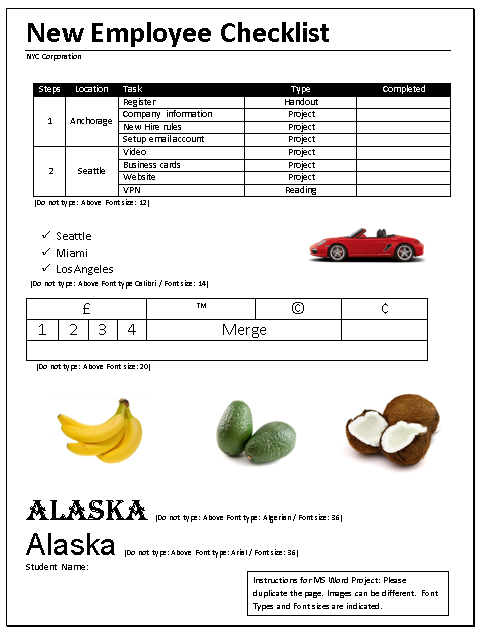
Your Project should look like this: