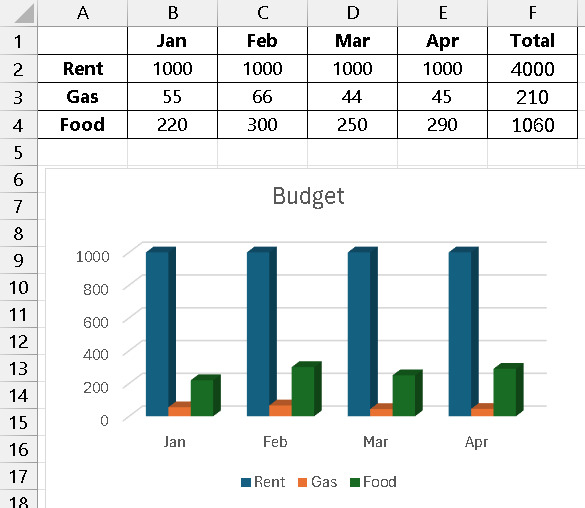
Create a Chart with the Data
Create a Stacked Column Chart in Excel. This type of chart is excellent for showing how different parts contribute to a whole over time.
Here is a step-by-step guide to create that exact chart using the data.
Step 1: Set Up Your Data in Excel
First, ensure your data is organized correctly in an Excel sheet. For this chart, you will not need the “Total” column.
-
Open Excel and enter the data as shown below.
-
Make sure the expense categories are in the first column and the months are in the first row.
| A | B | C | D | E | |
|---|---|---|---|---|---|
| 1 | Jan | Feb | Mar | Apr | |
| 2 | Rent | 1000 | 1000 | 1000 | 1000 |
| 3 | Gas | 55 | 66 | 44 | 45 |
| 4 | Food | 220 | 300 | 250 | 290 |
Step 2: Select the Data for the Chart
You need to tell Excel which data to include in the chart.
| Step | Action |
|---|---|
| 1 | Click on cell A1. |
| 2 | Hold down the mouse button and drag your cursor to cell E4. |
| 3 | This will select the entire data range, including the row and column headers, which Excel will use for the chart’s legend and axis labels. |
Step 3: Insert the Stacked Column Chart
Now you will insert the chart itself.
| Step | Action |
|---|---|
| 1 | Go to the Insert tab on the Excel ribbon at the top of the screen. |
| 2 | In the “Charts” group, click on the Insert Column or Bar Chart icon. |
| 3 | A dropdown menu will appear. Under the 2-D Column section, select the second option, which is the Stacked Column chart. |
Excel will immediately create the chart and place it on your worksheet.
Step 4: Customize the Chart Title
The final step is to give your chart a descriptive title, just like in the image.
| Step | Action |
|---|---|
| 1 | Click on the default “Chart Title” text at the top of the chart. |
| 2 | A text box will appear. Delete the default text and type in “Monthly Expenses“. |
| 3 | Click anywhere outside the title box to set the new title. |
Final Result
Your chart should now look exactly like the one you uploaded. It will show the total expenses for each month, with the different colors in each column representing the breakdown of costs for rent, gas, and food.
You can click and drag the chart to move it around your worksheet or use the corner handles to resize it.
Your Project Should look like the image below