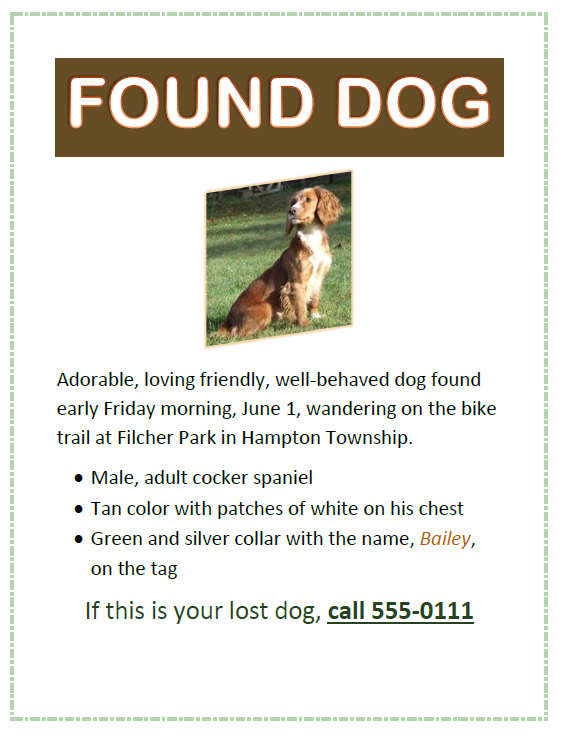
Step-by-Step: Create the “Found Dog” Flyer in Microsoft Word
1. Open a New Document
-
Launch Microsoft Word
-
Click Blank Document
-
Set font:
-
Font: Calibri or Arial
-
Size: 11–12 pt
-
2. Create the Title
-
At the top of the page, type:
FOUND DOG -
Highlight the text
-
Format it:
-
Bold
-
ALL CAPS
-
Font size: 18–24 pt
-
Center align
-
3. Add Spacing Below Title
-
Press Enter 2 times to create space
4. Enter the Description Paragraph
Type the following text:
Format:
-
Align: Left
-
Line spacing: 1.15 or 1.5
-
Optional: Justify text for a cleaner look
5. Add Bullet Points for Dog Details
-
Press Enter
-
Go to Home → Bullets
-
Enter each item:
-
Male, adult cocker spaniel
-
Tan color with patches of white on his chest
-
Green and silver collar with the name, Bailey, on the tag
6. Add Contact Information
-
Press Enter twice
-
Type:
If this is your lost dog, call 555-0111
Format:
-
Bold (optional to make it stand out)
-
Slightly larger font (12–14 pt)
7. Improve Visual Layout (Optional but Recommended)
Add Emphasis:
-
Bold key words like:
-
Male
-
Cocker spaniel
-
Bailey
-
Add Spacing:
-
Ensure space between sections for readability
8. Optional Enhancements (Flyer Style)
To make it look more like a real flyer:
Add a Border:
-
Go to Design → Page Borders
-
Choose a simple box border
Add a Picture:
-
Go to Insert → Pictures
-
Add a dog image (if available)
-
Center it under the title
9. Final Check
-
Make sure alignment is clean
-
Ensure no spelling errors
-
Keep layout simple and readable
10. Save Your Document
-
Click File → Save As
-
Name it:
Found_Dog_Flyer.docx
Your Project should look like this: