
Microsoft Excel
What Excel Is and Why People Use It
Excel is a spreadsheet program used to organize, calculate, and analyze information. It allows us to store data in tables made of rows and columns.
People use Excel for many everyday tasks, such as:
- Tracking expenses
- Managing lists
- Calculating totals
- Creating charts and reports
In this course, we will learn how to enter data, create formulas, organize information, and build simple charts.
By the end of the course, you will be able to create your own spreadsheets for work, school, or personal projects. When you open Excel, you will see a large grid. This grid is made of rows and columns.
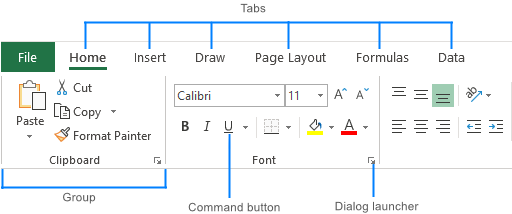
Tabs:
These are the main categories displayed across the ribbon, such as “File”, “Home”, “Insert”, “Page Layout”, etc.
Groups:
Each tab is divided into groups, which further organize related commands. For example, the “Home” tab includes groups like “Clipboard”, “Font”, and “Alignment”.
Commands:
These are the individual tools and actions within each group, like “Copy”, “Paste”, “Bold”, “Center”, etc.
Dialog Launchers:
Some groups have a small icon in the bottom right corner (a small arrow) that, when clicked, opens a dialog box with more options related to that group.
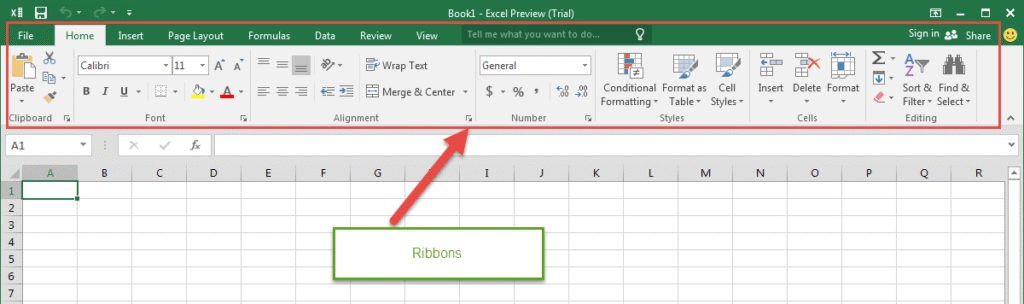
Ribbon Display Options:
Users can customize how the ribbon is displayed, including options to show all tabs and commands, show tabs only, or even hide the ribbon entirely, according to Microsoft Support.
The Spreadsheet
Columns run vertically and are labeled with letters such as A, B, C, and D.
Rows run horizontally and are labeled with numbers such as 1, 2, 3, and 4.
Where a row and column meet is called a cell.
Each cell has a unique address. For example:
-
Column A and Row 1 is called A1
-
Column B and Row 3 is called B3
Cells are where we enter information.
Entering and Editing Data
Entering information in Excel is simple.
-
Click on a cell.
-
Type the information.
-
Press Enter.
You can enter different types of data, such as:
-
Text
-
Numbers
-
Dates
If you make a mistake, you can click the cell again and edit the content.
Excel allows you to quickly update and correct information.
Activity
Create this table:
| Name | Age | City |
| Alex | 22 | DC |
| Sara | 19 | Alaska |
| Leo | 25 | NYC |
Then change one of the ages.
Formatting Cells
Formatting helps make your spreadsheet easier to read.
Excel allows you to:
-
Make text bold
-
Change font size
-
Add colors
-
Add borders around cells
Formatting does not change the data itself. It only changes the way the information looks.
Using formatting helps organize information and highlight important values.
Activity
Perform the following:
-
Make the header row bold
-
Add borders around the table
-
Change the header background color
Adjusting Columns and Rows
Sometimes text does not fit inside a column.
Excel allows us to adjust the width of columns and the height of rows.
To resize a column:
-
Move the cursor between two column letters.
-
Drag to increase or decrease the width.
You can also double-click to automatically adjust the column size.
Activity
Students should create a column with long text and adjust the width so everything becomes visible.
Introduction to Formulas
Formulas allow Excel to perform calculations automatically.
Every formula begins with an equal sign.
For example:
=A1+A2
This formula tells Excel to add the values from cell A1 and A2.
Excel will automatically calculate the result.
This is one of the most powerful features of Excel.
Activity
Create the following:
| Number 1 | Number 2 | Total |
| 10 | 15 |
Write a formula to calculate the total.
Basic Math Operations
Excel can perform many types of calculations.
Common math operators include:
Addition: +
Subtraction: –
Multiplication: *
Division: /
For example:
=A1*A2
This multiplies the values in A1 and A2.
These operators allow you to build more complex calculations.
Activity
Create a table:
| A | B | C | D | ||
| 1 | Product | Price | Quantity | Total | Math Operations |
| 2 | Paper | 10 | 5 | Addition: + | |
| 3 | Paper | 10 | 5 | Subtraction: – | |
| 4 | Paper | 10 | 5 | Multiplication: * | |
| 5 | Paper | 10 | 5 | Division: / |
Students calculate the total price.
Video: Excel: Getting Started